How to Automate Calendar Invite Sending Using Zapier or Pabbly
Managing webinars, conferences and client meetings with zapier or pabbly today involves more than just sending emails. Event organizers must ensure every attendee receives the right information at the right time and that their event appears directly in their calendar.
Many teams still send invites manually, but this approach quickly becomes difficult when you’re dealing with hundreds or thousands of attendees. Automation is now the smartest and most reliable way to handle event invitations at scale.
Before diving deeper, let’s understand what is calendar invite. A calendar invite is a digital meeting request that allows recipients to accept or decline an event and automatically save it to their calendar. A well-structured calendar invitation ensures attendees don’t miss your event and helps organizers track participation.
In this blog, we’ll explain how event and webinar teams can automate the entire process using Zapier or Pabbly with Let’s Calendar making it easy to send personalized invites at scale without manual work.
Why Manual Calendar Invites No Longer Work at Scale
Sending one or two invites manually is simple. Sending hundreds is not.
When teams try managing multiple calendar invites in gmail, they often face:
- Sending limits
- Spam or delivery issues
- No personalization
- Poor tracking
- Time-consuming manual work
The same challenges appear when managing mass calendar invites in google or Outlook for large webinars or conferences.
Marketing teams need scale.
CXOs need professionalism.
Operations teams need control.
Manual methods simply can’t deliver all three.
What Modern Event Teams Need Today
Event and webinar organizers now expect:
- Automated invite delivery
- Personalization for each attendee
- Real-time RSVP tracking
- Discreet sending without spam risk
- Integration with registration forms and CRM tools
Instead of manually sending calendar invites, modern teams use automation tools connected with platforms like Let’s Calendar.
Understanding Calendar Invite Automation
Automation means sending invites automatically when an action happens.
Example workflow:
- Someone registers for webinar
- Automation triggers
- Invite sent instantly
This eliminates manual work and ensures no attendee is missed.
Many teams also ask how automation connects with Gmail or Outlook. The answer is simple: automation tools connect registration sources with calendar systems through integrations.
Why Use Let’s Calendar for Automated Invites
Let’s Calendar is designed for event organizers who need to send personalized invites at scale.
It helps teams:
- Send invites 1:1 automatically
- Personalize each invite
- Track responses
- Avoid spam filters
- Manage large attendee lists
Unlike basic tools that only send a calendar invite, Let’s Calendar provides full control over delivery, personalization, and tracking.
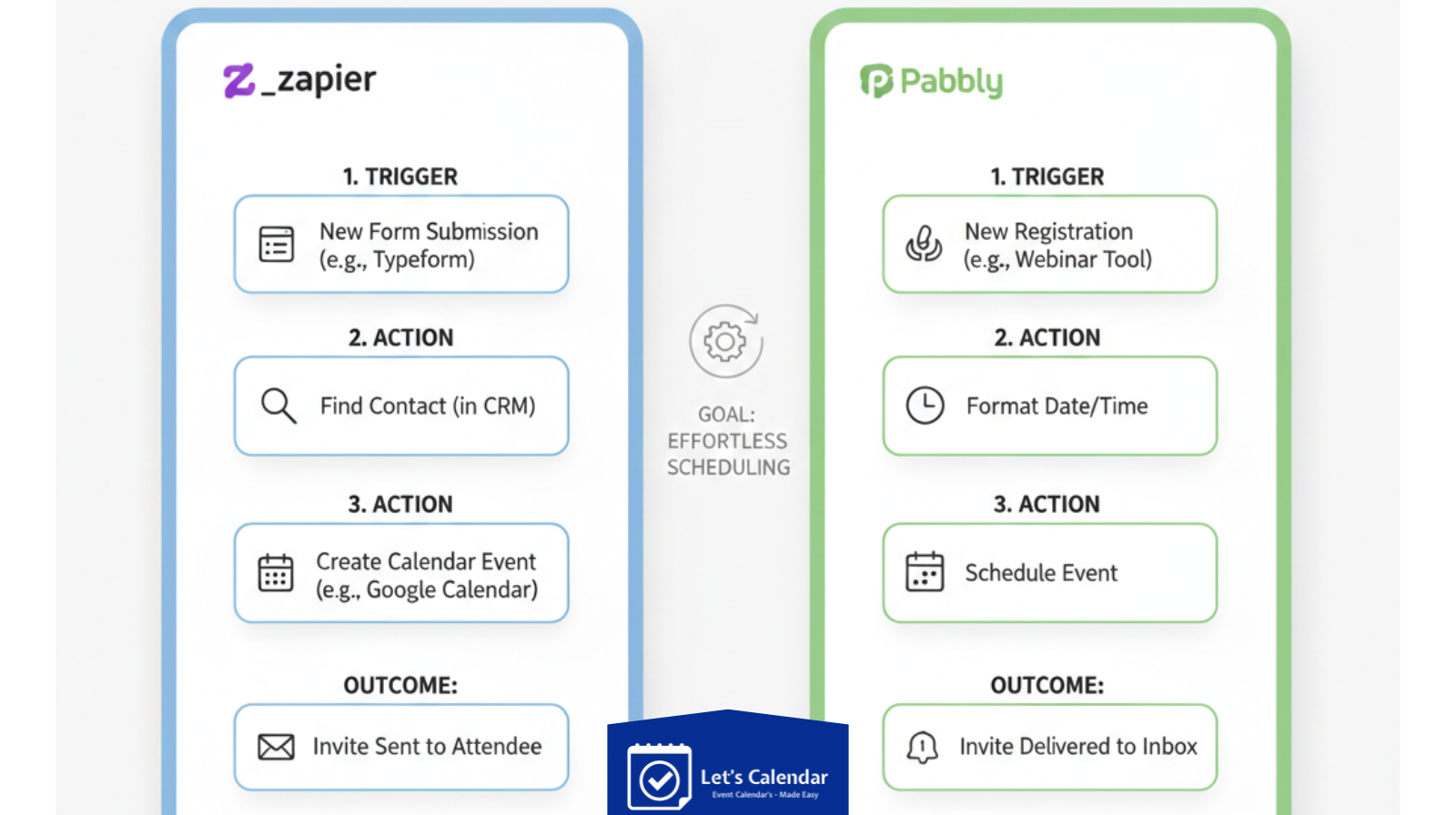
How Automation Works With Zapier or Pabbly
Automation tools like Zapier and Pabbly connect different apps and automate actions between them.
Simple workflow:
Registration form → Zapier/Pabbly → Let’s Calendar → Invite sent automatically
This ensures every new registrant instantly receives a professional invite.
Step-by-Step: Automate Calendar Invites Using Zapier
Zapier is one of the most popular automation platforms for event teams.
Step 1: Connect Your Registration Source
You can connect:
- Google Forms
- Typeform
- HubSpot
- CRM tools
- Event registration platforms
Whenever someone registers, Zapier detects the entry.
Step 2: Create Trigger
Set trigger as:
“New registration” or “New lead added”
This tells Zapier when to start automation.
Step 3: Connect Let’s Calendar
Choose Let’s Calendar as an action app.
Map fields like:
- Name
- Email
- Company
- Event type
This ensures each invite is personalized.
Step 4: Test Automation
Send a test invite to confirm:
- Email delivered
- Event added correctly
- Personalization working
Once confirmed, turn on automation.
Now every new registration will automatically receive an invite.
Step-by-Step: Automate Calendar Invites Using Pabbly
Some teams prefer Pabbly because of its pricing and unlimited workflows.
Step 1: Create Workflow
Choose a trigger app (form, CRM, or sheet).
Step 2: Connect Let’s Calendar
Add action:
Send calendar invite automatically.
Step 3: Map Data Fields
Match:
Step 4: Activate Workflow
Once activated, invites are sent automatically for every new entry.
This removes manual effort completely.
Automating Gmail and Google Calendar Invites
Many organizers search how to send a calendar invite in gmail for webinars or meetings.
While Gmail allows manual invites, automation ensures consistency and scale.
Using Let’s Calendar with Zapier or Pabbly helps teams:
- Avoid manual sending
- Reduce errors
- Deliver invites instantly
It also helps teams who normally send bulk meeting invites in gmail manually but want a smarter method.
Automating Outlook and Microsoft 365 Invites
Corporate teams often rely on Outlook.
Automated workflows help teams:
This is especially useful for teams that frequently send bulk meeting invites in outlook for webinars or enterprise meetings.
Personalizing Calendar Invites Automatically
Automation doesn’t mean generic invites.
With Let’s Calendar, you can personalize:
- Attendee name
- Company name
- Meeting agenda
- Session link
- Custom notes
This makes every invite feel individually sent.
Personalized invites improve acceptance rates and attendance.
Adding Events to Attendee Calendars Easily
A major benefit of automated invites is the ability to invite calendar entries directly into attendee calendars.
When recipients accept:
- Event is saved automatically
- Reminders are scheduled
- Attendance likelihood increases
You can also include options like:
- Add to Google Calendar
- Add to Outlook
- Add to Apple Calendar
This improves attendee experience.
Tracking Responses and Engagement
Automation is not just about sending invites. It’s also about tracking responses.
Let’s Calendar allows teams to monitor:
- Accepted invites
- Declined invites
- Pending responses
This helps:
- Marketing teams estimate attendance
- Operations teams plan sessions
- Sales teams track client engagement
Common Mistakes to Avoid in Automation
Even with automation, avoid these mistakes:
Not Testing Workflow
Always send test invites before going live.
Incorrect Field Mapping
Ensure name and email fields are mapped correctly.
Duplicate Invites
Avoid sending multiple invites to the same attendee.
Ignoring Time Zones
Always confirm the correct time zone for global events.
Use Cases for Different Teams
Marketing Teams
- Webinar registrations
- Lead nurturing events
- Product demos
CXO and Leadership Teams
- Client meetings
- Investor calls
- Executive briefings
Webinar & Event Operations Teams
- Large conferences
- Multi-session events
- Speaker coordination
Automation helps all teams stay organized and efficient.
Why Automation Is the Future of Event Invites
Manual invite sending will continue to decline.
Automation provides:
- Faster workflows
- Better attendee experience
- Fewer errors
- Higher attendance
Using Let’s Calendar with Zapier or Pabbly allows teams to scale invites without increasing workload.
Final Thoughts
Managing webinar, conference, and client meetings with zapier or pabbly invites doesn’t have to be complicated. With automation tools like Zapier or Pabbly and a professional platform like Let’s Calendar, you can send personalized invites automatically and track responses easily.
Instead of spending hours sending invites manually, modern event teams are moving toward automated workflows that save time, improve attendance, and create a professional experience for every attendee.
If your team regularly manages events with 50, 100, or even thousands of attendees, automating your calendar invite process is one of the smartest steps you can take today.





Recent Comments