How to Automate Calendar Invite Sending Process Using Pabbly
Sending calendar invites is an essential part of daily business operations. Whether it’s meetings, webinars, interviews, or internal sessions, calendar invites help people remember schedules and stay organized. However, when invites are sent manually, the process quickly becomes slow and repetitive.
This blog explains what calendar invites are, how people usually send them using Gmail or Outlook, why manual methods are not ideal, and how you can automate calendar invite sending using Pabbly and Let’s Calendar in a simple and reliable way.
What Is a Calendar Invite?
Before automation, it’s important to understand what is a calendar invite.
A calendar invite is a digital event invitation that allows recipients to add an event directly to their calendar. Once accepted, the event appears automatically with the correct date, time, and reminders.
Calendar invites are commonly used for:
- Meetings
- Online events and webinars
- Interviews
- Training sessions
- Corporate events
Instead of sending long emails, calendar invites ensure people don’t forget important events.
How Calendar Invites Are Usually Sent Manually
Most teams rely on email calendar tools to send invites.
Sending Calendar Invites Using Gmail
Many users search for send meeting invite in Gmail or how to send calendar invite Gmail when working with Google tools.
The usual steps include:
- Opening Google Calendar
- Creating a new event
- Adding attendee email addresses
- Sending the invite
This process works for small meetings, but becomes difficult when many people need to be invited or when invites need to be sent repeatedly. Users often ask how to send a calendar invite on Gmail because the steps must be repeated every time.
Sending Calendar Invites Using Outlook
Outlook is widely used in corporate environments. Users commonly look for send meeting invites in Outlook to schedule meetings.
Typical steps include:
- Creating a meeting in Outlook Calendar
- Adding attendees manually
- Sending the invite
Although Outlook is powerful, manually managing large lists of attendees or recurring events can quickly become time-consuming.
Why Manual Calendar Invite Sending Is a Problem
Manually sending invites may seem manageable at first, but it creates several challenges:
- Repetitive work for every event
- High chance of missing or incorrect details
- Difficult to manage bulk attendees
- No automatic connection with forms or CRMs
- Time wasted on follow-ups
This is why many teams start looking for invite software that can automate the process instead of relying only on Gmail or Outlook.
What Is Pabbly and How Automation Helps
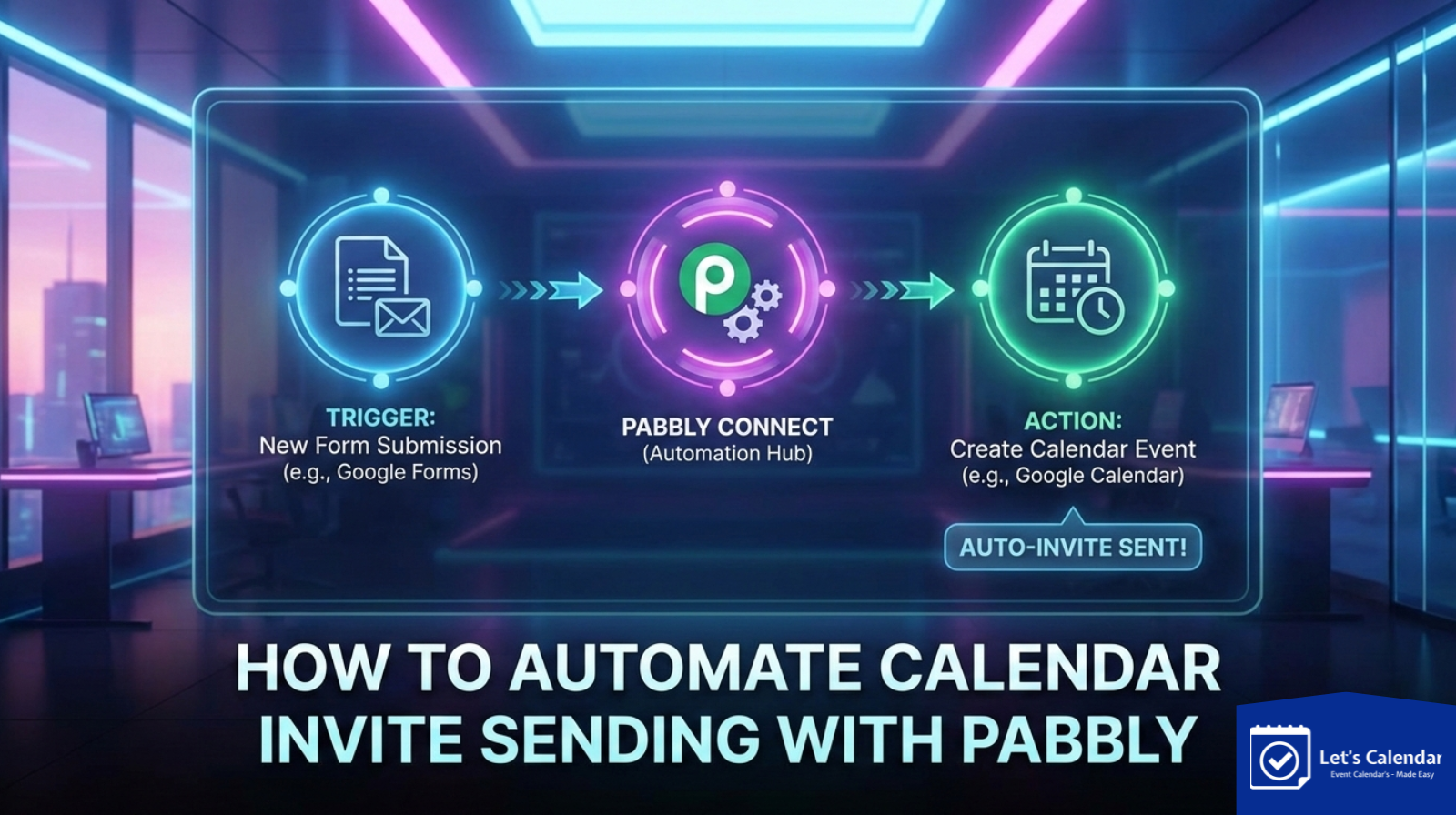
Pabbly Connect is a no-code automation platform that helps different apps work together automatically.
Automation works using:
- Triggers – an action that starts the workflow
- Actions – what happens automatically next
For example:
- Someone fills a form → a calendar invite is sent
- A new lead is added → a meeting invite is created
Automation removes the need to manually send calendar invite Gmail or Outlook for every single attendee.
How Let’s Calendar Works with Pabbly
Let’s Calendar integrates with Pabbly Connect to automate calendar invite workflows.
Instead of manually creating calendar invites, Let’s Calendar:
- Creates the calendar event
- Sends the invite to attendees
- Ensures compatibility with Gmail and Outlook
Pabbly acts as the connector, while Let’s Calendar handles invite creation and delivery.
Step-by-Step: Automating Calendar Invites Using Pabbly and Let’s Calendar
Below is a simple and clear explanation of how automation works.
Step 1: Choose the Trigger
The trigger decides when the calendar invite should be sent.
Common triggers include:
- New form submission
- New row added in Google Sheets
- New CRM contact
- New event registration
Once the trigger happens, the automation starts automatically.
Step 2: Create a Workflow in Pabbly Connect
Log in to Pabbly Connect and create a new workflow.
Choose the app where your data comes from (form, CRM, or sheet).
This step replaces the need to manually send meeting invite in Gmail every time someone registers.
Step 3: Connect the Trigger App
Configure the trigger by:
- Selecting the trigger event
- Connecting your account
- Testing the trigger
This ensures Pabbly receives attendee details like name and email correctly.
Step 4: Add Let’s Calendar as the Action
Now select Let’s Calendar as the action app.
This step automates invite sending. Instead of manually handling meeting invite in Gmail or Outlook, Let’s Calendar sends the invite automatically when the trigger fires.
Step 5: Map Event Details Carefully
Mapping ensures the invite contains correct information:
- Attendee email
- Event date and time
- Time zone
Correct mapping ensures smooth delivery across Gmail and Outlook calendars.
Step 6: Test and Activate the Workflow
Before going live:
- Run a test
- Check the received invite
- Confirm it appears correctly in calendars
Once verified, activate the workflow. From now on, invites are sent automatically.
Real-World Use Cases
Webinar Registrations
When someone registers for a webinar, a calendar invite is sent instantly.
Sales Meetings
When a lead is added, automation handles send meeting invites in Outlook or Gmail without manual work.
HR Interviews
Interview schedules are sent automatically after candidate shortlisting.
Internal Meetings
Recurring internal sessions can be managed without repeatedly creating events.
Best Practices for Automation
To ensure success:
- Always test before activating
- Avoid duplicate invites using filters
- Keep time zones consistent
- Monitor workflows regularly
These practices help avoid common errors.
Why Automation Is Better Than Manual Methods
Automation:
- Saves time
- Reduces human errors
- Improves attendee experience
- Scales easily
Instead of repeatedly searching how to send a calendar invite on Gmail, automation handles the work silently in the background.
Final Thoughts
Calendar invites are a key part of professional communication, but manual processes do not scale. Whether teams use Gmail or Outlook, automation brings consistency and efficiency.
By combining Pabbly with Let’s Calendar, businesses can simplify scheduling, reduce manual effort, and ensure every event invite is delivered accurately and on time.
If you want a smarter way to manage invitations, automation is the right step forward.






Shubhi Patel