How to Send a Calendar Invite: Gmail vs Outlook
Efficient scheduling Gmail vs Outlook is one of the biggest challenges for event organizers, webinar managers, and corporate teams. Whether it’s a client meeting, a webinar, or a multi-session conference, ensuring that all attendees receive timely invites and reminders can significantly impact participation and engagement.
While traditional email reminders are common, calendar invites have become the preferred method for professional scheduling because they integrate directly with recipients’ calendars and provide automated notifications. But when it comes to sending calendar invites, which platform is easier: Gmail or Outlook? And how can you streamline the process for large-scale events?
In this guide, we’ll compare Gmail and Outlook calendar invites, explore their strengths and weaknesses, and show how Let’s Calendar can simplify sending mass invites, personalizing them, and tracking responses efficiently.
Understanding Calendar Invites
Before comparing Gmail and Outlook, it’s important to understand what is a calendar invite and why it matters.
A send calendar invite gmail is more than a simple email. It’s a digital request that adds an event directly to a recipient’s calendar, sending automatic reminders and notifications. Unlike traditional emails, which can get lost or overlooked, calendar invites ensure your meetings and events are visible and actionable.
Key components of a calendar invite:
- Event title and clear description
- Date, time, and time zone
- Agenda or session details
- Location or virtual meeting link
- Personalized notes for individual attendees
For event organizers, personalization is crucial. Tools like Let’s Calendar allow you to how to send calendar invitation personalized invites at scale, ensuring attendees receive information relevant to them while maintaining discretion.
Gmail Calendar Invites: Features & Steps
Gmail’s integration with Google Calendar makes it a popular choice for many professionals. Here’s what you need to know:
Advantages of Gmail Calendar Invites
- Seamless integration with Gmail
- Recipients can add to calendar easily
- Automatic reminders and notifications
- Supports attaching documents and links
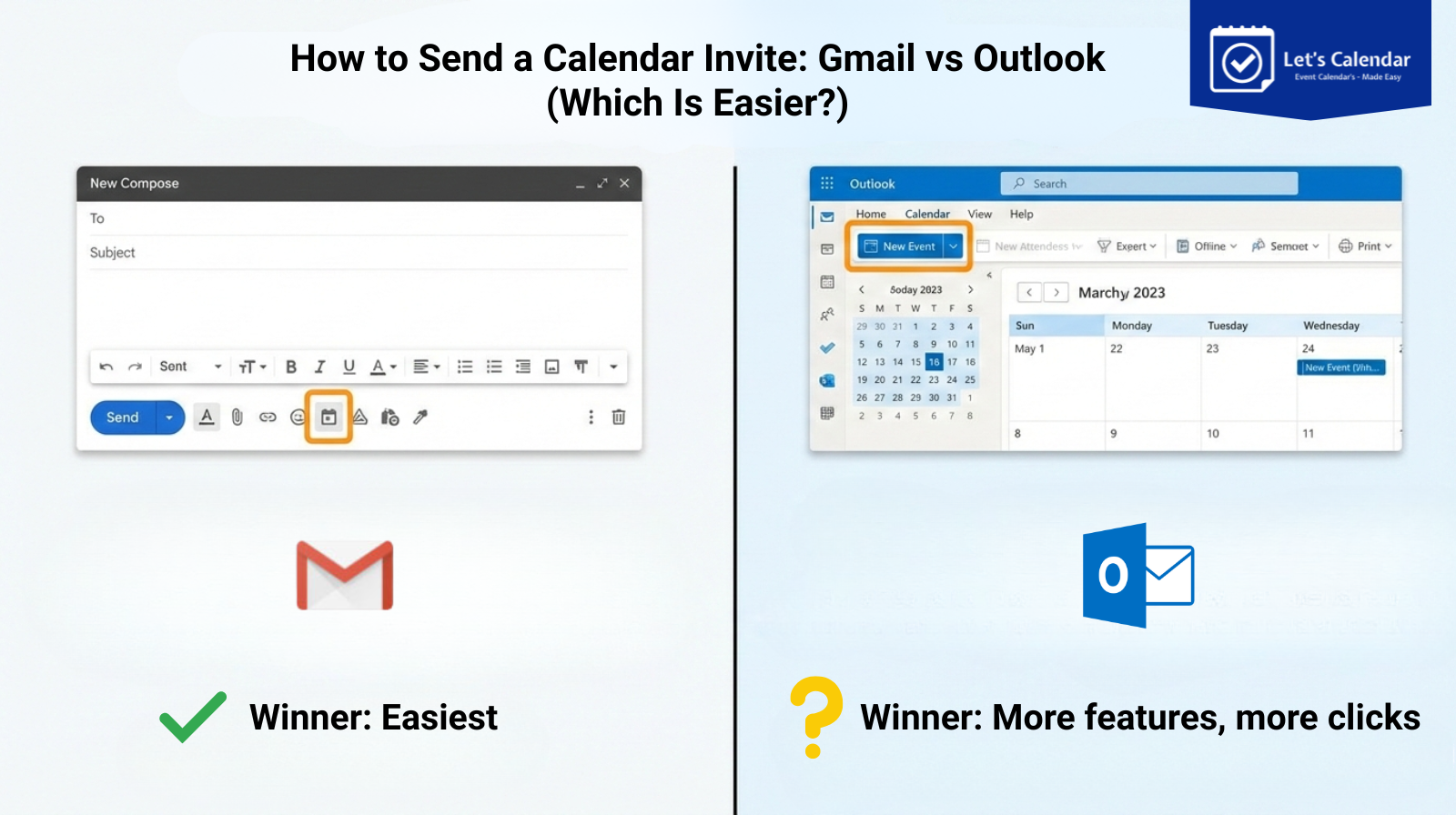
Step-by-Step Guide to Sending a Calendar Invite in Gmail
- Open Google Calendar and click “Create Event.”
- Fill in event details: title, description, date, time, and location.
- Add attendees’ email addresses.
- Click “Save” and send the invite.
- Recipients can easily add to calendar with one click.
Sending invites through Gmail is straightforward, but scaling for hundreds of attendees can be challenging. Personalizing each invite or tracking responses can be cumbersome.
How Let’s Calendar Enhances Gmail Invites:
- Send invites discreetly to individuals or groups
- Include personalized details for each attendee
- Track who accepted, declined, or marked tentative
- Automate follow-ups for better engagement
Challenges with Gmail for Mass Invites
- Difficult to personalize at scale
- Limited response tracking
- Recipient emails may be visible in bulk invites
Outlook Calendar Invites: Features & Steps
Outlook is widely used in corporate environments and integrates with Microsoft Teams and Skype.
Advantages of Outlook Calendar Invites
- Corporate standard for many organizations
- Supports recurring events
- Easy to integrate with meetings via Microsoft Teams
- Allows RSVP tracking for each attendee
Step-by-Step Guide to Sending a Calendar Invite in Outlook
- Open Outlook and click “New Meeting.”
- Enter event details: title, description, date, time, and location.
- Add attendees’ emails and send the invite (how to send a calendar invite in outlook).
- Recipients receive Outlook calendar invitations and can RSVP.
While Outlook is robust, sending bulk personalized invites can be time-consuming, and tracking large attendee lists manually can be challenging.
How Let’s Calendar Improves Outlook Invites:
- Discreetly send bulk invites without exposing emails
- Personalize each invite with attendee-specific information
- Track responses in real-time
- Ensure cross-platform compatibility for all recipients
IV. Gmail vs Outlook: Comparison Table
Feature | Gmail | Outlook | Let’s Calendar |
Ease of Use | Simple, user-friendly | Slightly more complex | Intuitive dashboard |
Bulk Invite Capability | Limited | Limited | Send bulk invites discreetly |
Personalization | Manual | Manual | Personalized 1:1 or segmented groups |
Tracking Responses | Basic | Basic | Detailed RSVP tracking |
Cross-platform Support | Google Calendar, mobile | Outlook, Teams | Gmail, Outlook, Apple Calendar, cross-platform |
Best Practices for Sending Calendar Invites
- Send invites in advance: 1–2 weeks before the event.
- Personalize invites: Include attendee-specific notes or access details.
- Use automation for reminders: Reduce manual follow-ups.
- Ensure cross-platform compatibility: Gmail, Outlook, Apple Calendar.
- Track responses: Monitor accepted, declined, and tentative responses.
Step-by-Step Guide: Using Let’s Calendar for Mass Invites
- Log in to Let’s Calendar account
- Access the Campaigns Section: Click “Create Campaigns”.
- Fill in Campaign Details: Event title, description, date/time, venue, agenda.
- Upload Attendee List: Segment for personalization.
- Send Invites: 1:1 or in bulk discreetly.
- Track Responses and Follow-Up: Monitor acceptances, declines, and tentative RSVPs.
Benefits:
- Supports Gmail and Outlook invites
- Cross-platform compatibility
- Automation reduces manual workload
- Enhances professional communication with attendees
Advanced Tips for Event Organizers
- Multi-timezone events: Ensure correct local times for all attendees.
- Recurring webinars and meetings: Use recurring invites to save time.
- Mobile-friendly invites: Ensure accessibility on smartphones and tablets.
- Analytics for optimization: Monitor RSVPs and engagement to improve future events.
Let’s Calendar provides tools to execute these advanced strategies seamlessly, enhancing attendee experience and organizer efficiency.
Troubleshooting Common Issues
- Calendar conflicts: Check for overlapping events before sending invites.
- Missed invites or spam: Ensure proper formatting and deliverability.
- Syncing errors across platforms: Provide universal links or .ics files.
- Time zone errors: Double-check time zones for international attendees.
Conclusion
Choosing between Gmail vs Outlook depends on your organization’s platform preferences. Both are effective for individual invites but present challenges at scale.
Key Takeaways:
- Calendar invites improve attendance and engagement compared to email reminders.
- Gmail is user-friendly, Outlook is robust, but both have limitations for bulk invites.
- Let’s Calendar bridges the gaps, allowing personalized, discreet, and trackable invites at scale.
By understanding how to send a calendar invite in Gmail or Outlook, leveraging cross-platform tools, and using Let’s Calendar, organizers can streamline scheduling, enhance professional communication, and ensure successful webinars, conferences, and client meetings.






Shubhi Patel