How to Automate Calendar Invite Sending Process Using Zapier
Sending calendar invites is a daily task for many teams marketers hosting webinars, HR teams scheduling interviews, sales teams booking demos, or operations teams planning internal meetings. While sending a few invites manually may seem simple, the process becomes time-consuming and error-prone when the number of recipients increases.
This is where automation becomes important.
In this blog, we’ll explain what calendar invites are, how they are traditionally sent, why manual methods don’t scale, and how you can automate the entire calendar invite sending process using Zapier and Let’s Calendar in a simple and practical way.
What Is a Calendar Invite?
A calendar invite is a digital event invitation that allows recipients to add an event directly to their calendar. Once accepted, the event appears automatically with the correct date, time, and details.
Calendar invites are commonly used for:
- Meetings
- Webinars
- Interviews
- Training sessions
- Conferences
Unlike plain emails, calendar invites help avoid confusion because they block time on the calendar and send reminders automatically.
Traditional Ways to Send Calendar Invites
Before automation, most users rely on email calendar tools.
Sending Invites Using Outlook
Many users search for how to send invites on Outlook or send meeting invites in Outlook because Outlook is widely used in corporate environments.
The usual steps include:
- Open Outlook calendar
- Create a new meeting
- Add attendees manually
- Click Send
This works well for small meetings, but becomes inefficient for large or recurring events. Managing Outlook calendar invitations manually also increases the risk of missing attendees or sending incorrect details.
Sending Invites Using Gmail
Gmail users often ask how to send a calendar invite on Gmail or send meeting invite in Gmail.
Typically, the process involves:
- Opening Google Calendar
- Creating an event
- Adding guest emails
- Sending invitations
While Gmail makes it easy to add to calendar, this method still requires manual effort and constant updates when attendee lists change.
Why Manual Calendar Invites Don’t Scale
Manual invite sending may work for a few people, but it creates problems at scale:
- Repetitive manual work
- High chance of human error
- Difficulty managing bulk attendees
- No automatic syncing with forms or CRMs
- Hard to track registrations and responses
This is why many teams look for automation instead of manually managing meeting invite in Gmail or Outlook for every event.
What Is Zapier and Why It Matters
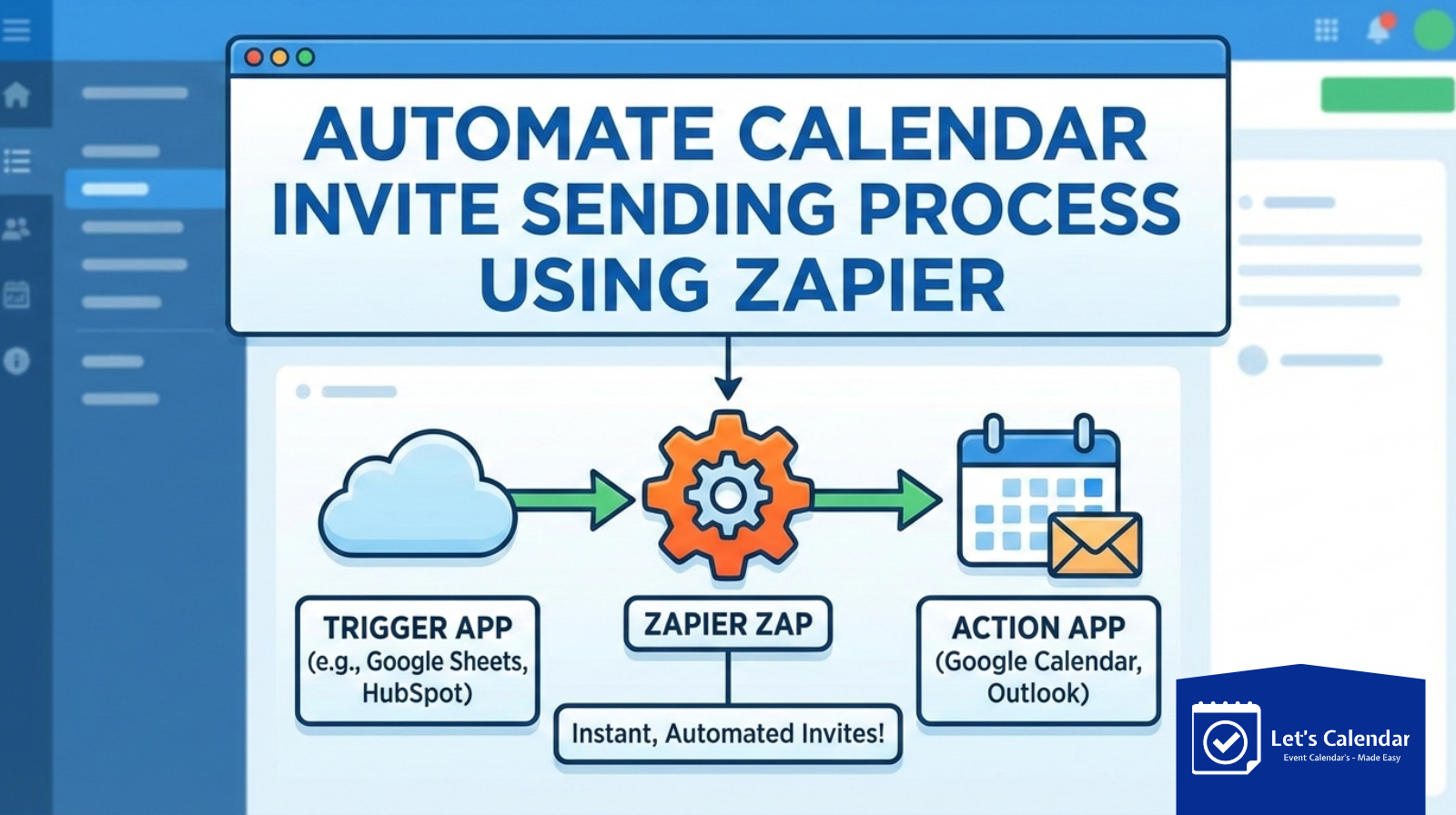
Zapier is a no-code automation platform that connects different apps and allows them to work together.
It uses:
- Triggers (something happens in one app)
- Actions (something happens automatically in another app)
For example:
- A user fills out a form → a calendar invite is sent
- A new CRM contact is added → a meeting invite is scheduled
Zapier acts as the bridge between tools without needing any coding skills.
How Let’s Calendar Works with Zapier
Let’s Calendar integrates with Zapier to automate calendar invite workflows. Instead of manually sending meeting invites in Outlook or Gmail one by one, users can automatically send calendar invites when a trigger occurs.
With this setup:
- You don’t manually send invites
- Attendees receive calendar invitations instantly
- Event details remain accurate and consistent
This approach is far more efficient than repeatedly using send meeting invites in Outlook or Gmail manually.
Step-by-Step: Automating Calendar Invites Using Zapier and Let’s Calendar
Let’s walk through the process in a clear and simple way.
Step 1: Decide the Trigger
First, decide when a calendar invite should be sent.
Common triggers include:
- A form submission
- A new row added in Google Sheets
- A new contact created in a CRM
- A webinar registration
This trigger replaces the need to manually send meeting invite meeting invites in Outlook or Gmail every time.
Step 2: Connect Zapier to the Trigger App
In Zapier:
- Select your trigger app (e.g., Google Forms, HubSpot, Sheets)
- Choose the trigger event (e.g., new submission)
- Test the trigger to ensure Zapier receives the data
This step ensures attendee details like name and email are captured correctly.
Step 3: Add Let’s Calendar as the Action
Now choose Let’s Calendar as the action app.
This action automatically creates or sends the calendar invite without manual effort. Instead of worrying about what is calendar invite formatting or delivery, Let’s Calendar handles it smoothly.
Step 4: Map Event Details Correctly
This is a critical step.
You map:
- Attendee name
- Email address
- Event date and time
- Time zone
Accurate mapping ensures recipients receive a proper calendar invite that works across Gmail and Outlook.
Step 5: Test and Activate the Automation
Before going live:
- Test the Zap
- Check the received calendar invitation
- Confirm it works in both Gmail and Outlook
Once tested, turn the Zap on. From now on, invites are sent automatically.
Real-World Use Cases
Webinars and Online Events
Registrants automatically receive calendar invites when they sign up, no manual follow-ups required.
Sales and Demo Scheduling
New leads instantly receive meeting invites, eliminating delays caused by manual scheduling.
HR and Recruitment
Interview invites are automatically sent when candidates reach the next stage.
Internal Team Meetings
Recurring meetings can be automated instead of repeatedly creating events.
These use cases remove the need to repeatedly send meeting invites in Outlook or Gmail manually.
Best Practices for Calendar Invite Automation
To ensure smooth automation:
- Always include time zone information
- Use filters to avoid duplicate invites
- Test every workflow before enabling
- Keep event details consistent
Following these practices improves reliability and user experience.
Why Automation Is Better Than Manual Invites
Automation ensures:
- Faster invite delivery
- Fewer mistakes
- Better attendee experience
- Scalable workflows
Instead of wondering how to send a calendar invite on Gmail every time, automation handles it in the background.
Final Thoughts
Calendar invites are a critical part of professional communication, but managing them manually doesn’t scale. Whether you’re working with Gmail or Outlook, automation helps eliminate repetitive work and improves accuracy.
By combining Zapier with Let’s Calendar, teams can automate calendar invite sending in a reliable and user-friendly way making scheduling effortless and consistent.
If you want to move beyond manual workflows and simplify how calendar invitations are sent, automation is the next logical step.






Shubhi Patel