Connect Let's Calendar with 6,000+ apps through Zapier.
Automate how you send calendar invites, sync contacts, and trigger meeting invites, all without writing a single line of code.

Automate how you send calendar invites, sync contacts, and trigger meeting invites, all without writing a single line of code.
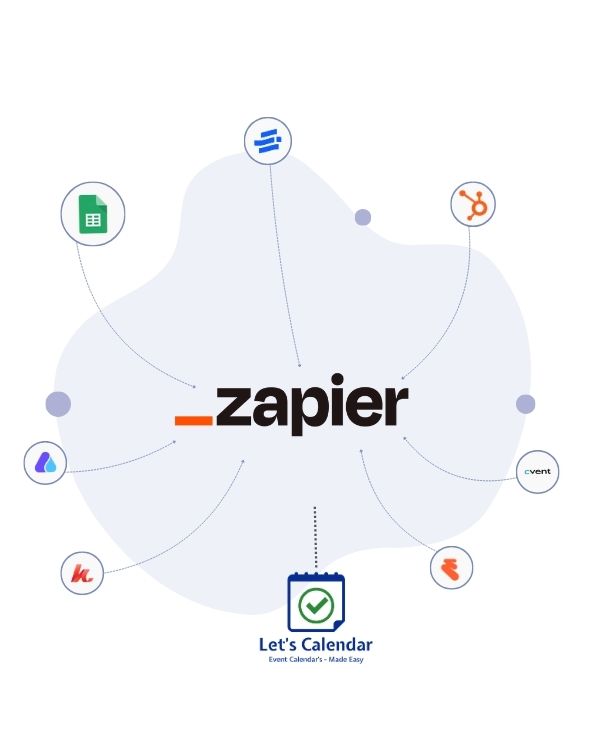
Zapier connects Let's Calendar to a wide range of platforms, automating workflow handshakes across systems smoothly.
Wondering how to send calendar invites to thousands of people without doing it manually every time? The Let's Calendar + Zapier integration means you never have to manually send calendar invites again. Whenever a contact signs up or registers for the event, a personalized calendar invitation is sent to them automatically.
Zapier acts as the bridge, connecting Let's Calendar to every form, CRM, webinar tool, and spreadsheet you already use. When something happens in App A, Let's Calendar automatically triggers the invite dispatch routine.
Set up your automated calendar invite workflow in under 10 minutes. No developers needed.
Sign up at letscalendar.com with your Gmail, Google Workspace, Outlook, or Microsoft 365 account. This is the identity from which your calendar invites will be sent.
Set up a campaign, add the event title, date, time, description, and meeting link or physical location. This is the calendar invite that will be sent automatically to every synced contact.
In Zapier, choose your trigger app (e.g. Typeform, Google Sheets, HubSpot). Set the trigger event, like "New Form Submitted" or "New Contact Added". Connect Let's Calendar and set an action event “Add Registration to Campaign.”
Map the name and email fields from your trigger app to Let's Calendar. Each contact will receive a personalised calendar invite with their name based on the dynamic parameter used in the campaign, making every invite feel 1:1.
Turn on your Zap. From now on, every new contact triggers an automatic calendar invite, sent personally from your own inbox, every hour to all new entries that arrive.
Built for teams who send hundreds or thousands of calendar invites with Zapier automating the intake, and Let's Calendar handling the delivery.
Your source can be a CRM or Event Management Tool or Google Sheet. That helps to pass the participants data to Zapier
To Create your campaign with event details like subject, event date and time, sender email, event location or common login URL.
You can create zap where you can select trigger with Event Management Apps and select Action as Let's Calendar app where the data will be sent.
Let's Calendar Tool that also helps to receive the data from Event Management Apps and send calendar invite automatically to each participants
Total Contact received from Event Management App and Total Invite Sent From Let's Calendar
Track accepted, declined, and pending invites in real time for every contact updated automatically via your active zaps.
When you send a calendar invite, you're sending a structured event file (called an .ICS file) directly to someone's email inbox. Their email client, whether Gmail, Outlook, or Apple Mail, recognizes it and offers them a one-click action and that is Add To Calendar. A good calendar invite includes the event title, date, time, location or meeting link, and a description. When accepted, it syncs to the attendee's Google Calendar, Outlook Calendar, or Apple Calendar automatically.
There are two ways to create a calendar invite: manually (one at a time using Google Calendar or Outlook) or at scale using the Let's Calendar Tool. For individuals sending a single meeting, the native approach works fine. For teams sending to dozens, hundreds, or thousands, Let's Calendar with Zapier is the right solution.
Create an account on Let's Calendar website
Configure your email service that you are currenly using for email communication.
Add calendar invite details like subject, event start date & time, calendar description
Contacts can be added via .csv, Zapier, Zoom
Calnedar Invites will be received quickly with no Let's Calendar branding.
The biggest mistake teams make when they send calendar invites in bulk is sending generic, impersonal emails. Let's Calendar uses dynamic parameters (variables) so each invite includes the recipient's name, making every calendar invite feel individually crafted, even when thousands go out at once.
Connect Typeform or Google Forms → Zapier → Let's Calendar. Every registrant gets an automatic calendar invite the moment they sign up.
Connect Event Management Tool → Zapier → Let's Calendar. Every registrant gets an automatic calendar invite the moment they sign up.
When a HubSpot deal moves to "Demo Booked", Zapier triggers Let's Calendar to send a meeting calendar invite instantly.
Have a Google Sheet of attendees? Add a row → Zapier triggers → calendar invite sent automatically. The simplest way to send a calendar invite from a list.
Connect to Eventbrite or Shopify. When a ticket or product is purchased, automatically send a calendar invite for the event date.
Connect your LMS or Calendly. Every new student or new hire gets a calendar invite for their first session without HR lifting a finger..
Any event in any connected app can kick off an automated calendar invite workflow through Zapier.
Free account. Connect any app. Start sending automated calendar invites in under 5 minutes.





Copyright © 2026. All Rights Reserved.
Designed with by
Manomay Informatics