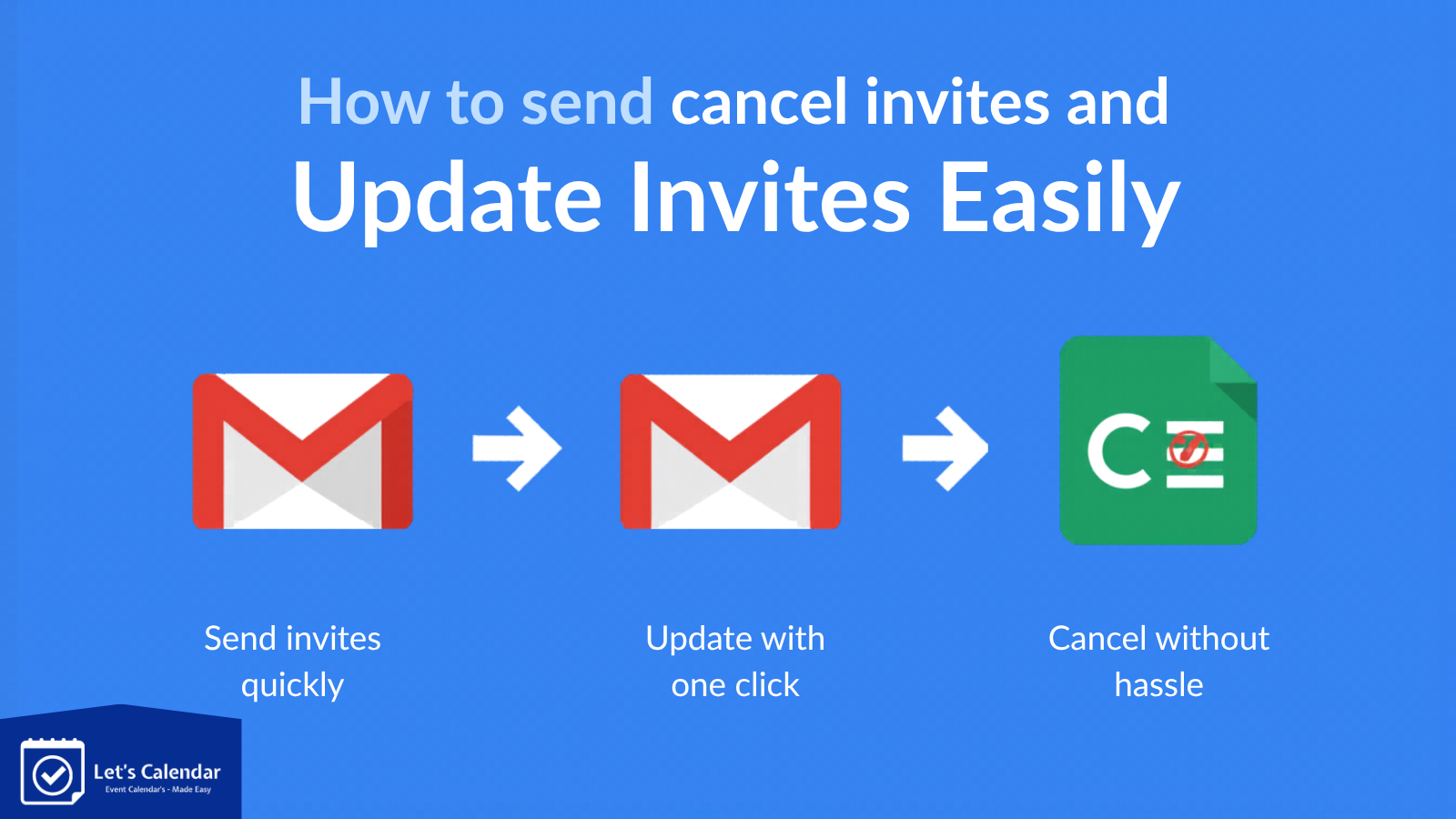
Gmail Calendar Invites: How to Send, Update, and Cancel Invites Easily
Running webinars, conferences, or high-stakes client meetings means one thing is certain: Gmail Calendar Invites your attendees need clear, reliable ways to save the event in their calendar. When invites go wrong, attendance drops, follow-up work increases, and your carefully planned delegate generation efforts lose impact.
Many teams still rely on Gmail and Google Calendar for scheduling. While it works well for small groups, scaling to hundreds or thousands of participants quickly reveals limitations, especially when you need personalization, privacy, or easy response tracking.
In this guide, we’ll cover exactly how to send a calendar invite in Gmail, how to update or cancel events, common pitfalls for event organizers, and why tools like Let’s Calendar make the entire process smoother at scale for marketing, operations, and executive teams.
Why Gmail Calendar Invites Matter for Event and Webinar Teams
A well-crafted calendar invite does more than just block time. It sets expectations, provides all joining details in one place, and helps attendees remember your webinar or conference amid busy schedules.
For delegate generation and marketing teams, strong invites improve show-up rates. For CXOs and client-facing leaders, send meeting invite in gmail, they project professionalism in one-on-one or small-group meetings. Operations teams, meanwhile, need processes that don’t break when handling multiple sessions or large attendee lists.
Google Calendar makes basic invites straightforward, but challenges appear when you try to:
- Personalize messages for different audience segments
- Keep attendee lists private (especially for VIP client meetings)
- Track who accepted, declined, or hasn’t responded
- Send updates or cancellations without overwhelming inboxes
- Support attendees using Outlook, Apple Calendar, or other platforms
These pain points are exactly why many event teams look for smarter ways to manage add to calendar experiences.
Step-by-Step: How to Send a Calendar Invite in Gmail
Here’s the clearest way to create and send invites directly from Google Calendar (the most reliable method):
- Go to calendar.google.com and sign in.
- Click the big Create button (top left) or click directly on the desired date and time slot.
- Fill in the event details:
- Event title — Make it descriptive and benefit-focused, e.g., “Q3 Marketing Webinar: AI Strategies That Drive ROI”
- Date, start/end time, and timezone (Google handles conversion for most guests)
- Add a location or Google Meet/Zoom link
- In the Guests section, start typing email addresses. You can add multiple people.
- Mark guests as Required or Optional where needed.
- Write a clear description in the body: include agenda, what attendees will gain, speaker info, and any preparation steps.
- Add attachments if required (slides, reading material, etc.).
- Click Save. Google will prompt you to send invitations, choose Send to notify guests.
You can also start from Gmail:
- Open Gmail, click the calendar icon in the right sidebar, or use the “Create event” option inside a draft email.
This process works smoothly for small teams or individual client meetings, how to send calendar invite gmail, However, when preparing for a large webinar or multi-track conference, manually adding hundreds of emails becomes time-consuming and error-prone.
Pro tip for organizers: Always test the invite by sending it to a colleague using a different email provider (Outlook, corporate Gmail, personal Yahoo) to ensure the add calendar to event process works cleanly on their end.
How to Update a Gmail Calendar Invite
Events change, speakers get swapped, times shift, or agendas get refined. Updating invites correctly prevents confusion.
To update an existing event:
- Open Google Calendar and click on the event.
- Click the pencil icon (Edit event).
- Make your changes: update time, add/remove guests, modify the description, or change the meeting link.
- Click Save.
- Google will ask whether to send updates to All guests, Only new guests, or Don’t send. Choose carefully, frequent “Updated Invitation” emails can annoy busy professionals and reduce open rates for future communications.
Best practice for event teams: Limit major updates. For minor tweaks (like adding a resource link), consider sending a separate follow-up email instead of triggering a full calendar update.
When updating for large webinars, keep the core details (date, time, main link) stable. Attendees appreciate consistency.
How to Cancel a Gmail Calendar Invite
Sometimes you need to cancel or reschedule entirely. Doing it properly maintains trust with your audience.
Steps to cancel:
- Open the event in Google Calendar.
- Click the three dots (more options) or the trash icon.
- Select Delete or Cancel event.
- Add a polite cancellation note explaining the reason and any next steps (new date, recording link, alternative session, etc.).
- Choose to notify all guests and click Delete and notify or similar.
For recurring events (common in webinar series), Google offers options to delete only this instance, all following events, or the entire series.
After cancellation, send mass meeting invites in gmail. Consider sending a separate thank-you or “we’re sorry” email with alternative value, such as a recording, related resource, or priority access to the next event. This helps protect your delegate relationships and brand reputation.
Common Issues When Sending Gmail Calendar Invites (And Quick Fixes)
Even with the right steps, issues pop up especially at scale:
- Invites not appearing in guests’ calendars: Check that guests haven’t turned off automatic additions in their Google Calendar settings. Some corporate accounts have strict filters.
- Invites landing in Spam/Promotions tab: This happens more with bulk sends or new domains. Always test first.
- Cross-platform problems: Attendees on Outlook or Apple Calendar sometimes see broken links or missing details. Clear add to calendar options help here.
- No response tracking: Google shows basic Yes/Maybe/No, but chasing hundreds of responses manually is exhausting for operations teams.
- Privacy concerns: When you add everyone to one event, guests can see the full attendee list, problematic for competitive client meetings or VIP sessions.
These limitations become obvious when you move from 10–20 client meetings to full webinar campaigns or large conferences.
The Scaling Challenge: Bulk Calendar Invites for Webinars and Conferences
Manual Gmail processes work for occasional meetings but struggle when you need to:
- Send personalized invites to different audience segments (e.g., marketing leaders vs. technical teams)
- Keep certain meetings discreet and 1:1
- Track responses in one dashboard
- Generate professional add calendar links that work across Google, Outlook, Apple, and others
- Avoid inbox fatigue from multiple update emails
Event organizers often spend too many hours copying lists, tweaking messages, and following up on non-responses. This time would be better spent on content, speaker coordination, or delegate nurturing.
How Let’s Calendar Makes Gmail Calendar Invites Easier at Scale
Let’s Calendar is designed specifically for teams like yours, marketing, webinar operations, delegate generation, and CXO support, who need to schedule meetings, conferences, and webinars efficiently and professionally.
With Let’s Calendar, you can move beyond Gmail’s manual limits and:
- Send bulk calendar invites quickly while keeping your own email/domain as the sender.
- Personalize at scale: Insert attendee-specific details such as first name, company, role-based agenda points, or custom joining instructions. Every invite feels thoughtful and relevant.
- Send discreet 1:1 invites: Perfect for sensitive client meetings where you don’t want to reveal the full guest list.
- Get clear response tracking: See real-time Accept, Tentative, or Decline status in one view, no more manual inbox checking.
- Support seamless “Add to Calendar”: Attendees can add the event to Google Calendar, Outlook, Apple Calendar, or others with one click.
Simple workflow for event teams:
- Create your master event once with full details, agenda, timezone handling, and custom fields.
- Upload or import your attendee list (CSV or via integrations) and map personalization variables.
- Send in bulk or discreet mode. Guests receive clean, professional invitations.
You reduce delivery issues, minimize “Updated Invitation” fatigue, and improve attendance because the process feels effortless for recipients. Many teams use Let’s Calendar alongside Gmail/Google Calendar, handling large campaigns in Let’s Calendar while keeping smaller internal meetings in Google.
It eliminates much of the friction around bulk calendar invite in gmail attempts and delivers better results with less effort.
Best Practices: Adding “Add to Calendar” Options to Boost Attendance
Beyond direct invites, smart organizers embed add to calendar links and buttons in confirmation emails, registration pages, thank-you messages, and reminders.
An add calendar to event button lets attendees save your webinar or conference instantly to their preferred calendar. This single feature can noticeably improve show-up rates by placing the event in their daily view with automatic reminders.
How to do it effectively:
- Place the button or link prominently after registration confirmation.
- Use friendly CTAs such as “Add This Webinar to My Calendar” or “Save Event to Outlook/Google Calendar”.
- Include complete information in the underlying event: title, description, agenda, speaker details, and joining instructions.
- Test across devices, mobile users especially love one-tap adding.
Let’s Calendar makes creating branded, personalized add to calendar links simple, so your event appears polished no matter which calendar platform your delegates use.
Additional tips for higher attendance:
- Send initial invites 7–14 days in advance for conferences and 3–7 days for webinars.
- Schedule automated reminders 48 hours and 24 hours before the event.
- Keep descriptions concise yet informative, focus on value and clear next steps.
- Use timezone-aware settings so international audiences see correct local times.
- Follow up personally with non-responders using response data.
Final Thoughts: Smarter Calendar Invites for Better Events
Mastering Gmail calendar invites sending, updating, and canceling them is essential for smooth webinar and conference execution. Google Calendar handles the basics well, but for growing teams managing multiple events and large audiences, purpose-built tools remove operational headaches and deliver a more professional experience.
Let’s Calendar helps marketing, operations, and leadership teams send personalized, trackable, and discreet calendar invites at scale whether for intimate client meetings or high-volume delegate webinars. The result? Less time troubleshooting, higher attendance, and happier attendees.
Ready to simplify your scheduling workflow and stop wrestling with manual invites? Visit Let’s Calendar today and discover how easy professional bulk and personalized calendar management can be.
Your next webinar or conference deserves smooth logistics and strong turnout. Start sending smarter invites now.






Shubhi Patel