- Email: sales@letscalendar.com
- phone: +44 (0) 203 916 5117
30 Jun
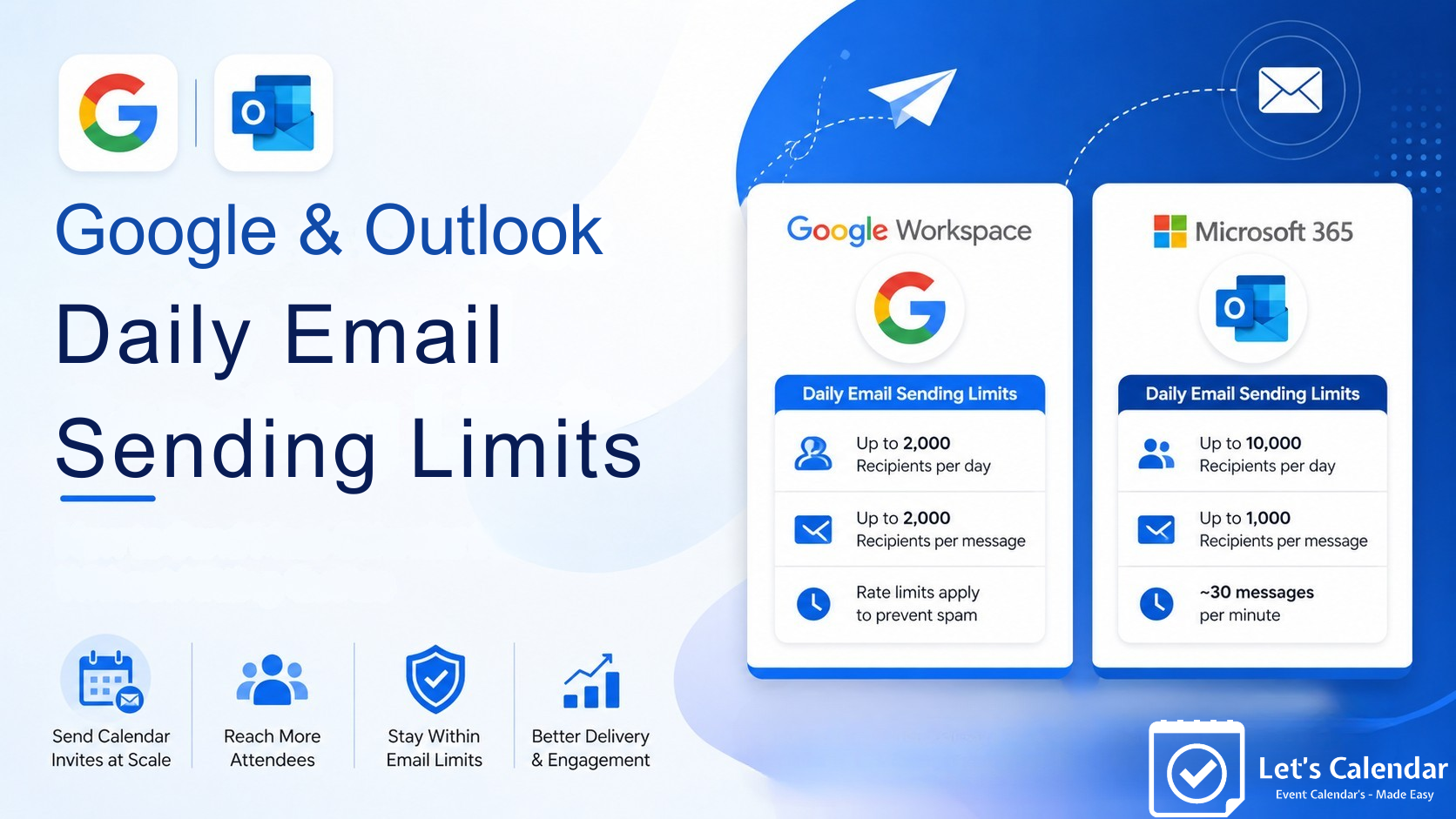
Google & Outlook Daily Email Sending Limits.
Whether you’re organizing a webinar, conference, training session, client meeting, or corporate event, sending calendar invites and Daily Email Sending Limits is one of the most effective ways to ensure attendees never miss an event.
However, many businesses run into an unexpected problem. After sending a large number of invitations, Gmail or Outlook suddenly stops sending emails, campaigns pause, or recipients don’t receive their invites. This happens because both Google Workspace and Microsoft Outlook have daily and hourly email sending limits designed to prevent spam and protect their email infrastructure.
If you’re planning to send bulk meeting invite in Outlook, deliver send mass meeting invites in Gmail, or manage hundreds of attendees, understanding these limits is essential.
Fortunately, there are ways to work within these limits without disrupting your event communications. Platforms like Let’s Calendar help businesses automate invite delivery, schedule sends, and send invitations in batches while using their own email account.
Let’s first understand what these sending limits are and why they matter.
What Are Google & Outlook Daily Email Sending Limits?
Google Workspace and Microsoft 365 allow users to send emails every day, but both providers enforce limits on how many emails and recipients can be reached within a specific period to mass calendar invite in outlook.
These limits help prevent spam, protect users, and maintain email server performance.
Google Workspace Sending Limits
Google Workspace currently allows approximately:
Limit | Google Workspace |
Daily email recipients | Up to 2,000 |
External recipients | Up to 2,000/day |
Per-message recipients | Up to 2,000 |
In addition to daily quotas, Google also applies hidden rate limits based on how quickly emails are sent. Sending too many emails within a short period can temporarily pause outgoing emails, even if you haven’t reached the daily limit.
This is why businesses often experience issues while trying to send invitations to large audiences all at once.
Microsoft Outlook / Microsoft 365 Sending Limits
Microsoft also enforces recipient and sending restrictions.
Typical Microsoft 365 limits include:
Limit | Microsoft 365 |
Daily recipients | Up to 10,000 |
Maximum recipients per message | 1,000 |
Recipient rate limit | Approximately 30 messages per minute |
Like Google, Microsoft continuously monitors email activity. If unusual sending behaviour is detected, messages may be delayed or temporarily blocked.
These limits can vary depending on your Microsoft 365 subscription, tenant configuration, and account reputation.
Note: Google and Microsoft periodically update their sending policies. Always refer to their official documentation for the latest limits before planning large email campaigns.
Why Do Businesses Hit Sending Limits?
Sending limits usually aren’t a problem for everyday email communication. However, they become a challenge when businesses need to contact hundreds or thousands of people at once.
Some common examples include:
- Webinar registrations
- Conference invitations
- Product launches
- Corporate training sessions
- Employee onboarding
- Customer success webinars
- Sales demonstrations
- Internal company meetings
Imagine you’re hosting a webinar with 800 attendees.
You create the event and immediately try to send mass meeting invites to everyone using Gmail. If all invitations are sent simultaneously, Google may temporarily pause outgoing emails because the sending activity appears unusual.
The same challenge exists when businesses create a mass meeting invite for employees or customers using Outlook.
Without proper planning, invitations may be delayed, recipients may receive them hours later, or the campaign may stop completely.
What Happens When You Exceed Sending Limits?
Exceeding Google’s or Microsoft’s sending limits doesn’t usually result in a permanent suspension. Instead, the email provider temporarily restricts outgoing messages until your account returns to normal sending behaviour.
You may experience problems such as:
- Calendar invitations are delayed.
- Campaigns pause unexpectedly.
- Some attendees never receive their invitation.
- Temporary restrictions on sending emails.
- Reduced trust in your email reputation.
For example, if you’re trying to send outlook calendar invitations for a company-wide event, only a portion of your recipients may receive the invitation initially, while the remaining attendees experience delays.
This can lead to confusion, lower attendance, and unnecessary follow-up emails from your team.
The good news is that these issues can often be avoided by planning your invitation delivery and using features designed for bulk event communications rather than sending everything at once.
How to Send Multiple Calendar Invites Without Hitting Gmail or Outlook Limits
Sending a few invitations is easy. The challenge begins when you need to send multiple calendar invites to hundreds or even thousands of attendees.
Many businesses assume they can simply upload a contact list and send all invitations at once. While this may work for small groups, sending a large volume of invitations in a short time can trigger Gmail or Outlook sending limits.
Instead, follow these best practices:
1. Send Invites in Batches
Rather than sending 1,000 invitations at once, divide your audience into smaller batches. This keeps your sending activity within acceptable limits and improves overall delivery.
2. Schedule Your Invite Delivery
If your event is next week, there’s no need to send every invitation today. Scheduling invitations over several hours or days reduces the risk of hitting provider limits.
3. Test Before Sending
Always send a few test invitations first to verify the event details, meeting link, attachments, and recipient experience.
4. Monitor Delivery
Keep an eye on your campaign status to identify any paused or delayed invitations before your event.
Following these simple practices makes it much easier to manage multiple calendar invites while reducing delivery issues.
How to Send Bulk Meeting Invite in Outlook
Microsoft Outlook is widely used for business communication, making it a popular choice for scheduling meetings and events.
If you’re trying to send bulk meeting invite in Outlook, there are a few things to keep in mind.
Outlook allows you to create meeting requests and send them to multiple recipients, but it wasn’t designed for large-scale event communication. As the number of recipients increases, Microsoft 365 applies sending and recipient limits to protect its email infrastructure.
For example, if you’re sending outlook calendar invitations to hundreds of attendees, you may notice slower delivery or temporary throttling depending on your account activity.
A better approach is to:
- Create your event in advance.
- Import your attendee list.
- Send invitations in controlled batches.
- Schedule delivery over time instead of sending everything instantly.
This approach makes it much easier to manage a bulk calendar invite in Outlook while staying within Microsoft’s recommended sending behaviour.
Businesses planning conferences, webinars, or internal company events should avoid relying on a single mass send. Instead, spreading delivery over multiple batches improves both reliability and attendee experience.
How to Send Mass Meeting Invites in Gmail
Google Workspace is another popular platform for business communication. Many organizations use Gmail together with Google Calendar to manage meetings and events.
If you’re planning to send mass meeting invites in Gmail, understanding Google’s sending limits is important.
While Google Workspace supports business communication, it continuously monitors sending activity. Sending hundreds of invitations within a short period can trigger temporary restrictions, even when your daily quota hasn’t been reached.
Instead of sending everything at once, consider these best practices:
- Upload your attendee list in advance.
- Divide recipients into smaller batches.
- Schedule invitations throughout the day.
- Monitor delivery progress.
This method is much more reliable than trying to send bulk meeting invites in Gmail in one go.
For recurring webinars or training sessions, planning invitation delivery a few days before the event also provides enough time to resend invitations if required.
Step-by-Step: How Let’s Calendar Helps You Stay Within Sending Limits
Managing large invitation lists manually can quickly become time-consuming. Let’s Calendar simplifies the process by helping you plan and automate invitation delivery while working within Gmail and Outlook sending limits.
Step 1: Create Your Event
Start by creating your event in Let’s Calendar.
Add your event title, date, time, location or meeting link, description, and other event details. Once your event is ready, you’re ready to invite attendees.
Step 2: Upload Your Recipients
Import your attendee list using a CSV file or your preferred method.
Whether you’re inviting 100 people or several thousand, your recipient list is organized in one place for easier management.
Step 3: Use Batch Invite and Schedule Send
Instead of sending every invitation immediately, use Batch Invite to divide recipients into smaller groups.
You can also schedule each batch to be delivered at different times. This helps reduce the chances of exceeding Gmail or Outlook sending limits while ensuring all attendees receive their invitations.
For example:
- Batch 1 – 20 recipients
- Batch 2 – 20 recipients after 10 minutes
- Batch 3 – 20 recipients after another 10 minutes
This approach provides a smoother sending experience without overwhelming your email provider.
Step 4: Track Invite Delivery
After sending invitations, monitor your campaign to see:
- Sent invitations
- Pending invitations
- Failed deliveries
- Recipient responses
This visibility helps event organizers quickly identify any issues and take corrective action before the event begins.
Using this workflow allows businesses to confidently manage mass calendar invites in O365, Gmail, and other supported email providers while remaining within recommended sending practices.
What Is a Calendar Invite & How Do I Send a Calendar Invite?
A calendar invite is a digital event invitation that allows recipients to add an event directly to their calendar with a single click. Instead of manually entering the event details, attendees receive the event title, date, time, location or meeting link, description, and reminders automatically.
If you’re wondering what is a calendar invite, think of it as a smarter way to invite people to meetings, webinars, conferences, training sessions, or appointments. It helps attendees stay organized and significantly reduces the chances of missed events.
So, how do I send a calendar invite?
The basic process is straightforward:
- Create an event in Google Calendar, Outlook, or another calendar application.
- Add the event details such as title, date, time, and meeting link.
- Enter the recipients’ email addresses.
- Send the invitation.
This method works well for small meetings. However, when you’re inviting hundreds or thousands of attendees, manually managing invitations becomes difficult.
For a complete guide on creating, sending, and managing calendar invitations, read our detailed article:
 Calendar Invites: What They Are, How to Send Them & Best Practices (2026 Guide)
Best Practices for Sending Large Volumes of Calendar Invites
Whether you’re organizing a webinar with 300 attendees or a conference with 5,000 registrations, following a few best practices can make your invitation process much smoother.
Plan Your Campaign Early
Don’t wait until the last minute to send invitations. Sending invites a few days in advance gives attendees enough time to respond and allows you to resolve any delivery issues before the event.
Example:
If your webinar is on Friday, schedule your invitation campaign on Tuesday or Wednesday instead of Friday morning.
Always Send Test Invites
Before inviting your entire audience, send a few test invitations to yourself or your team.
Check that:
- The event title is correct.
- The date and time are accurate.
- The Zoom or meeting link works.
- The invitation appears correctly in Google Calendar and Outlook.
A five-minute test can prevent hundreds of attendees from receiving incorrect information.
Use Batch Sending
Sending hundreds of invitations at once increases the likelihood of reaching Gmail or Outlook sending limits.
Instead, divide your audience into smaller batches and schedule them over time.
This approach improves delivery rates and provides a better experience for recipients.
Keep Your Contact List Clean
Remove invalid or duplicate email addresses before sending invitations.
A clean recipient list reduces bounced emails and improves your sender reputation.
Monitor Your Campaign
After sending invitations, regularly monitor the campaign to identify any failed deliveries or pending invitations.
If necessary, resend invitations to only those recipients who did not receive them.
Why Businesses Choose Let’s Calendar
Managing event invitations shouldn’t require manual follow-ups or complicated workflows.
Let’s Calendar is designed to simplify calendar invitation management for businesses of all sizes.
With Let’s Calendar, you can:
- Send invitations using your own Gmail or Outlook account.
- Schedule invitations in advance.
- Send invitations in batches to stay within email provider limits.
- Track invitation delivery and attendee responses.
- Manage updates without creating duplicate events.
- Support Google Calendar, Outlook, Apple Calendar, Yahoo Calendar, and ICS-compatible calendars.
Whether you’re organizing internal meetings, customer webinars, conferences, or training sessions, the platform helps reduce manual effort while improving the attendee experience.

Shubhi is a calendar invitation and event technology specialist at Let's Calendar, helping organizations improve attendance and simplify event scheduling through scalable calendar invitation solutions.





Shubhi Patel