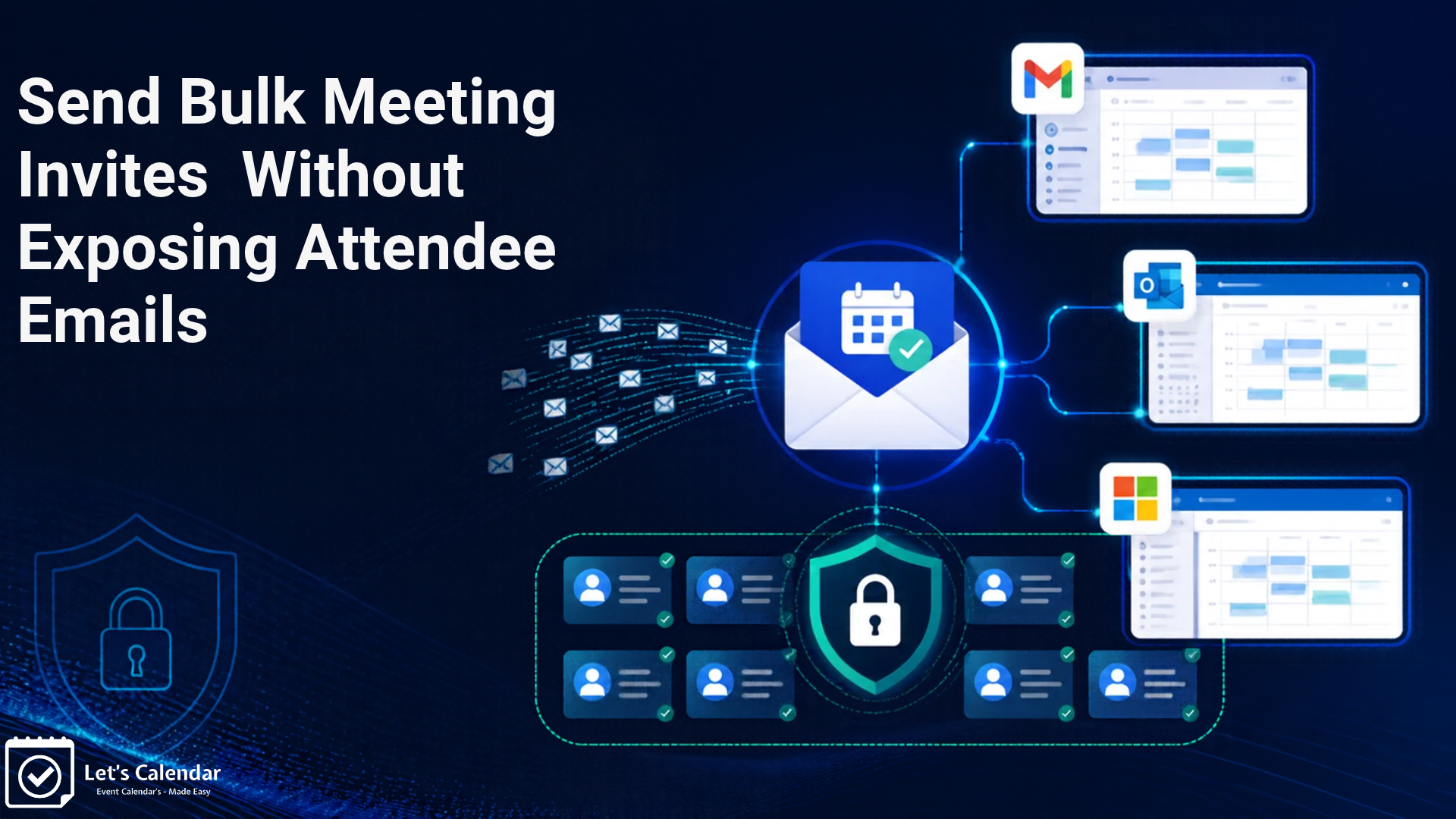
How to Send Bulk Meeting Invites in Gmail, Outlook & M365 Without Exposing Attendee Emails
Sending calendar invitations is easy when you have only a few people to invite. But what happens when you need to send bulk meeting invites 100, 500, or even thousands of people to the same event?
Sending each invitation separately takes time. Adding a long list of email addresses to one event can also create privacy concerns, make event management difficult, and complicate the process of tracking responses.
This is a common challenge for businesses, event organisers, webinar hosts, and teams that regularly organise meetings or events. Whether you need to send bulk meeting invites for a business meeting or organise invitations for a large webinar, finding the right method can save you time and effort.
Fortunately, there are different ways to send invitations through Google Calendar and Microsoft Outlook. For larger campaigns, a dedicated platform like Let’s Calendar can make the process easier by helping you send personalised invitations privately, manage updates, and track attendee responses.
In this guide, we’ll explain the basic methods, their limitations, and how you can manage large invitation campaigns more efficiently.
What Are Bulk Meeting Invites?
Bulk meeting invitations allow you to invite multiple people to the same meeting or event without creating every invitation manually.
For example, imagine you are organising a company webinar for 300 people. Instead of creating and sending 300 separate events yourself or send mass meeting invites in outlook, you can prepare your attendee list and use a suitable method to send invitations to everyone.
These invitations can be useful for:
- Webinars and online events
- Conferences and trade shows
- Business meetings
- Training sessions and workshops
- Company events and team meetings
- Client presentations and product demonstrations
The main goal is to save time while making sure every attendee receives the correct event details.
However, sending invitations to a large group is not just about sending emails. You also need to consider attendee privacy, event updates, cancellations, and RSVP tracking.
Sending invitations to a large number of people can create several problems, especially when you manage everything manually.
1. Sending Invitations Manually Takes Time
Creating an event and adding attendees one by one can take a lot of time.
This becomes even more difficult when you have hundreds of contacts. You may need to send mass meeting invite messages for different events, repeat the process for new attendees, or make changes to invitations that have already been sent.
A more organised process can reduce manual work and help you avoid mistakes.
2. Keeping Attendee Email Addresses Private
Privacy is an important concern when inviting people who do not know each other.
When you add multiple guests to one calendar event, the guest list and attendee details may be visible to other guests depending on the calendar settings and permissions.
For business events, webinars, and client meetings, you may not want attendees to see one another’s email addresses.
This is why it is important to understand the difference between sending one shared invitation and sending separate invitations to each person.
3. Managing Event Updates and Cancellations
Event details can change after invitations have been sent.
For example, you may need to change the meeting time, update the location, add a meeting link, or cancel the event.
If you have sent invitations manually, making sure every attendee receives the correct update can become difficult.
Using a suitable invitation management platform can make it easier to update or cancel invitations without repeating the entire process.
4. Tracking Meeting Responses
After sending invitations, you need to know who plans to attend.
Without a proper way to track responses, you may have to check emails or calendar notifications individually.
For larger events, this can become confusing. A central RSVP report helps you understand how many people have accepted, declined, or not responded.
5. Gmail and Outlook Sending Limits
Gmail and Microsoft have sending limits and other restrictions designed to reduce spam and protect their email services.
These limits can depend on the type of account, sending activity, and account reputation.
Sending a large number of invitations too quickly may result in temporary restrictions, delayed messages, or failed deliveries.
Before planning a large campaign, check the sending limits for your email account and use a suitable sending schedule.
How to Send Bulk Calendar Invites in Gmail, Outlook and Microsoft 365
You can create calendar events and invite multiple people using Google Calendar or Outlook Calendar. These built-in options are useful for basic meetings and smaller groups.
Using Google Calendar or Outlook Calendar
Using Google Calendar with Gmail
- Open Google Calendar using your Google account.
- Select a date and create a new event.
- Add the event title, date, time, location, and description.
- Add the guest email addresses.
- Save the event and send the invitations.
This is a simple way to send a bulk calendar invite in Gmail when you only need to invite a group to the same event. However, adding a large number of guests to one event may not provide the individual privacy and campaign management features needed for larger events.
Using Outlook and Microsoft 365
- Open Outlook Calendar using your Microsoft account.
- Select a date and create a new meeting.
- Add the meeting title, date, time, location, and other details.
- Add the attendee email addresses.
- Save and send the meeting invitation.
If you are looking for how to send bulk meeting invite in Outlook, these steps provide a basic method. You can also use an appropriate distribution list if it suits your organisation’s needs.
Microsoft 365 users can follow a similar process through Outlook. However, bulk meeting invites in O365 can become difficult to manage when you have a large attendee list and need to keep every recipient’s information private.
The same applies when managing bulk calendar invites in O365 for webinars, conferences, and other large events.
Both methods allow you to invite multiple people to an event. However, they may not be the best choice for large invitation campaigns.
For example, managing a long attendee list, keeping email addresses private, sending personalised invitations, and tracking responses can become difficult. You may also need to manage event changes across a large group.
If you regularly organise webinars, conferences, or meetings with hundreds of attendees, a dedicated invitation management platform can offer a more organised approach.
Why Sending Bulk Meeting Invites Privately Matters
When you invite a large group of people, protecting their contact information should be part of your planning.
This is particularly important for businesses that invite clients, customers, partners, or people who have registered for an event.
Shared Invitations vs. Individual Calendar Invitations
There are two common ways to invite multiple people to an event.
Shared calendar invitation: You create one event and add several attendees to it. Depending on the calendar settings and permissions, attendees may be able to see other guests or their email addresses.
Individual calendar invitations: Each person receives a separate invitation addressed to them. Other attendees are not included in that person’s invitation.
Individual invitations are useful when you want to keep attendee information private while still inviting everyone to the same event.
For example, if you are organising a webinar for 500 registered participants, you may want each person to receive their own invitation rather than one shared event with a visible guest list.
Why BCC Is Not the Same as a Private Calendar Invitation
Some people use BCC when sending event details through email. BCC hides the recipients’ email addresses from one another in that email.
However, a BCC email is not the same as an individual calendar invitation.
A normal email does not automatically provide all the features of a calendar event, such as accepting or declining an invitation, adding the event to a calendar, or receiving calendar updates.
If you want attendees to receive proper calendar invitations, you need a method that supports individual calendar invitations rather than relying only on BCC.
Protecting Attendee Email Addresses
Keeping attendee information private helps build trust.
It is especially important when:
- Inviting customers or clients to business meetings.
- Sending invitations to webinar registrants.
- Organising events with external participants.
- Inviting people from different companies.
- Managing private training sessions or workshops.
Sending separate invitations helps prevent unnecessary sharing of attendee email addresses and gives each person a more personalised experience.
How Let’s Calendar Makes Sending Bulk Meeting Invites Easier
When you regularly invite large groups, creating events manually in Google Calendar or Outlook may not be enough.
Let’s Calendar is a bulk calendar invitation platform that helps businesses and event organisers send personalised calendar invitations through Google, Outlook, and Apple Calendar.
Instead of adding every attendee manually, you can create your event, upload your contact list, and send individual invitations to your recipients.
Here is how it helps.
1. Send Thousands of Personalised Calendar Invitations
With Let’s Calendar, you can send invitations to a large number of people without creating each invitation separately.
You create your event once and upload your attendee list. The platform then sends a separate invitation to each recipient.
This is useful when you need to send bulk calendar invite campaigns for webinars, conferences, training programmes, client meetings, and other events where you need to reach many people.
The number of invitations you can send depends on your selected plan and available credits.
2. Keep Every Invitation Private
Privacy is one of the important benefits of using Let’s Calendar.
Each attendee receives an individual invitation. Recipients do not see the other people included in your campaign.
This means you can invite hundreds or thousands of people without sharing the complete attendee list with everyone.
It is a practical option for businesses that want to protect customer, client, or participant email addresses.
3. Upload Contacts Using Excel or CSV
You do not need to enter every attendee’s email address manually.
Let’s Calendar allows you to upload your contact list using an Excel or CSV file.
You can prepare your list in a spreadsheet, check the email addresses, and upload it while creating your campaign.
This makes it easier to manage large contact lists and reduces repetitive work.
4. Send Invitations Using Your Own Email Address
Let’s Calendar allows you to connect your email account and send calendar invitations using your own sender email address.
You can use a supported Google or Microsoft email account, or configure another supported sending service.
This helps recipients recognise who sent the invitation instead of receiving an invitation from an unfamiliar platform address.
Your sending setup and account limits still apply, so it is important to follow the relevant email provider’s sending guidelines.
5. Automatically Add Events to Attendees’ Calendars
Let’s Calendar sends proper calendar invitations rather than only sending an event-details email.
Recipients can respond to the invitation through their calendar service. When they accept, the event is added to their calendar according to the calendar provider’s normal invitation process.
This saves attendees from having to create the event manually.
It also makes it easier for them to keep the event details available in their Google, Outlook, or Apple Calendar.
6. Update or Cancel Invitations Easily
Sometimes event details change after invitations have been sent.
You may need to change the date, time, location, or meeting link. You may also need to cancel an event.
With Let’s Calendar, you can manage updates and cancellations through your campaign instead of preparing and sending a completely new invitation to everyone.
The platform sends the relevant calendar updates or cancellation invitations to the attendees included in the campaign.
This is particularly useful when managing recurring business events, webinars, and conferences.
7. Track RSVP Responses
Knowing who plans to attend is just as important as sending the invitation.
Let’s Calendar provides an RSVP overview so you can check attendee responses from your campaign.
You can track responses such as:
- Yes: The attendee has accepted the invitation.
- No: The attendee has declined the invitation.
- Maybe: The attendee is unsure.
- No response: The attendee has not responded yet.
This gives organisers a clearer view of expected attendance and makes event planning easier.
For example, if you send 500 invitations for a webinar, you can check the campaign responses instead of manually searching through individual emails.
Example: Sending Invitations for a Webinar
Imagine your company is organising a webinar for 1,000 registered participants.
You already have their email addresses in an Excel spreadsheet. You want every participant to receive a calendar invitation, but you do not want them to see the email addresses of other registrants.
With Let’s Calendar, the process is simple:
- Create your free account on Let’s Calendar.
- Connect and configure your sender email.
- Create a new campaign and enter the webinar details.
- Upload your attendee list using an Excel or CSV file.
- Review the event and attendee details.
- Send the invitations.
- Track attendee responses from your campaign dashboard.
Each participant receives an individual calendar invitation. If the webinar time changes, you can send an update through the campaign.
This helps you manage the invitation process from one place without creating every event manually.
Want to try it? Visit Let’s Calendar, create your free account, and send a test invitation.
Whether you use Google Calendar, Outlook, or a dedicated platform, following a few simple practices can make your invitation campaigns more successful.
1. Prepare a Clean Contact List
Before sending invitations, check your attendee list.
Make sure email addresses are correct and remove duplicate or incomplete entries. A clean list helps reduce failed deliveries and prevents people from receiving the same invitation more than once.
If you are using an Excel or CSV file, review the data before uploading it.
2. Include Clear Meeting Details
Every invitation should provide the information attendees need.
Include:
- Event or meeting title
- Date and time
- Time zone
- Meeting location or online meeting link
- Short event description
- Important instructions, if required
Clear information helps attendees understand the purpose of the event and decide whether they can attend.
3. Check Time Zones for Global Attendees
If your attendees are in different countries, time zones are important.
For example, a webinar scheduled for 10:00 AM in India will take place at a different local time in the United States or Europe.
Make sure the event is scheduled with the correct time zone and that the invitation displays the event time clearly.
4. Send Invitations in Advance
Do not wait until the last minute to invite attendees.
Sending invitations early gives people enough time to review the event, accept the invitation, and add it to their calendars.
For important webinars and conferences, you may also want to send updates when event details change.
5. Follow Gmail and Microsoft Sending Limits
Google and Microsoft apply sending limits to their email services. These limits can vary depending on the account type and sending activity.
Avoid sending a very large number of invitations in a short period without checking your account limits.
For large campaigns, use an appropriate sending schedule and monitor your sending account for any errors or restrictions.
6. Test Your Invitation Before Sending
Before sending invitations to your complete contact list, send a test invitation to yourself or a colleague.
Check that:
- The event title and description are correct.
- The date and time are accurate.
- The meeting link works.
- The invitation appears correctly in the calendar.
- The sender information is correct.
- The RSVP options work as expected.
A quick test can help you identify mistakes before they reach all your attendees.
Final Thoughts
Sending invitations or send bulk meeting invites to a large group should not mean spending hours creating events manually or worrying about attendee privacy.
Google Calendar and Outlook are useful for everyday meetings, but managing a large invitation campaign can become difficult when you need individual invitations, attendee privacy, event updates, send bulk meeting invites in outlook and RSVP tracking.
Let’s Calendar makes this process easier. You can upload your contact list, send personalised calendar invitations using your connected email account, manage updates and cancellations, and track attendee responses from one place.
Whether you are organising a webinar, conference, workshop, or business meeting, having the right invitation process can save time and make event management more organised.
Ready to simplify your next event? Create your free Let’s Calendar account and send a test invitation.





Shubhi Patel