RSVP Meaning in Calendar Invites
When you organize a meeting, webinar, conference, training session, or business event, sending an invitation is only the first step. You also need to know who is coming.
This is where RSVP becomes important.
RSVP lets event organizers know whether an attendee has accepted, declined, or is still undecided about an event. When you are managing a small meeting, checking a few responses is easy. But when hundreds or thousands of people are invited, managing responses manually can quickly become difficult.
In this guide, we will explain what RSVP means, how it works with Google Calendar, Outlook, and Microsoft Teams, how calendar files such as ICS and iCalendar fit into the process, and how Let’s Calendar helps organizers manage invitations and responses at scale.
What Does RSVP Mean?
RSVP comes from the French phrase Répondez s’il vous plaît, which means “please respond.”
In simple words, RSVP asks an invited person to tell the organizer whether they plan to attend.
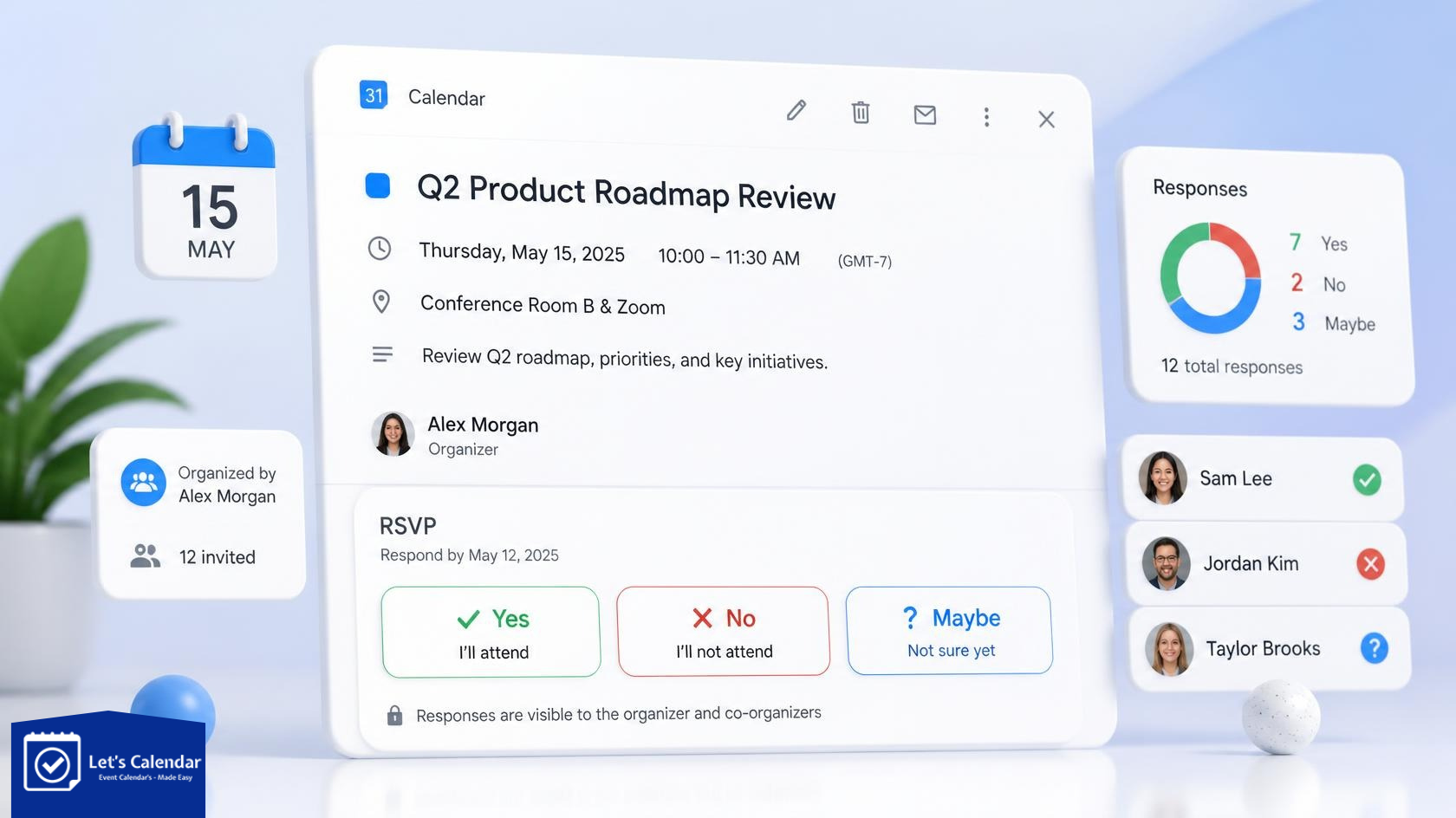
For a calendar event, an attendee may see options such as:
- Accept – The attendee plans to attend.
- Decline – The attendee does not plan to attend.
- Tentative – The attendee is not sure yet.
These responses help organizers understand expected attendance and plan the event accordingly.
Why Is RSVP Important for Events?
Imagine that you are organizing a webinar for 500 people.
You send the event invitation, but then you have to find out:
- Who accepted?
- Who declined?
- Who has not responded?
- Who may attend?
- Who needs a follow-up?
Checking hundreds of emails manually is not an efficient way to manage an event.
RSVP information gives organizers a clearer picture of expected attendance. This can be useful for conferences, webinars, workshops, training programs, client meetings, and other events.
What Is RSVP in Outlook?
If you use Microsoft Outlook for meetings, attendees can respond to the meeting invitation from Outlook.
When someone receives an Outlook meeting invitation, they can generally choose an appropriate response, such as accepting, declining, or responding tentatively.
So, if you are wondering what is RSVP in Outlook, it simply means the attendee’s response to the Outlook meeting invitation.
For a small meeting, Outlook’s built-in functionality may be enough. For a large event with many attendees, however, organizers may need a more centralized way to send invitations and manage responses.
What Is RSVP in Teams?
Microsoft Teams also supports meeting invitations and attendee responses.
If you are wondering what is RSVP in Teams, it refers to the response or attendance status associated with a Teams meeting invitation.
For example, a company may create a Teams meeting for an internal training session. Employees can respond to the invitation and add the meeting to their calendars.
For larger events, the challenge is not simply creating a Teams meeting. The challenge is managing a large attendee list, sending personalized invitations, and keeping track of responses efficiently.
How Does RSVP Work With Google Calendar?
Google Calendar allows organizers to create events and invite guests. Attendees can respond to invitations and add the event to their calendar.
This is useful when you are organizing a meeting with a few people.
But consider a webinar with hundreds of attendees. Adding every person manually and checking every response can become time-consuming.
This is where tools designed for large-scale calendar invitation management can help.
Let’s Calendar allows organizers to create a campaign, upload attendee information, personalize invitations, and send calendar invitations at scale. It also provides RSVP/acceptance tracking so organizers can view attendee responses from a central dashboard.
How to Share a Calendar in Google
There is a difference between sharing a calendar and inviting someone to an event.
When you share a Google Calendar, you are giving another person access to some or all of the calendar based on the permissions you provide.
A calendar invitation is different. It is connected to a specific event, meeting, webinar, or appointment.
For example:
Calendar sharing:
“Here is my work calendar.”
Calendar invitation:
“Please join our webinar on September 15 at 3:00 PM.”
If your goal is to invite people to a specific event, a calendar invitation is usually more appropriate than sharing your entire calendar.
What Are ICS and iCalendar?
You may come across the terms ical, iCalendar, ICS, and ICS format when working with calendar invitations.
They are related, but they are not exactly the same term.
What is iCalendar?
iCalendar is a standard for exchanging calendar information between different calendar applications.
It allows calendar applications to understand information such as the event name, date, time, location, organizer, attendees, and recurrence.
What is an ICS File?
An ICS file is a file that uses the iCalendar format. It normally uses the .ics extension.
An .ics file can contain information such as:
- Event title
- Start and end time
- Location
- Description
- Organizer
- Attendee information
- Recurrence details
Major calendar applications can use this information to display the event to the user.
What Is the ICS File Format?
The ICS file format is structured so that calendar applications can read the event information.
You may see sections such as VCALENDAR and VEVENT inside an ICS file.
You do not normally need to understand or edit this structure yourself when using a calendar invitation platform.
What Is ICS File Structure?
At a basic level, an ICS file structure contains calendar information organized into defined properties.
For example, an event can contain:
- SUMMARY – event title
- DTSTART – start date and time
- DTEND – end date and time
- LOCATION – event location
- ORGANIZER – event organizer
- ATTENDEE – invited attendee
- RRULE – recurring event information
Let’s Calendar handles the generation of the calendar invitation data for you, so organizers do not need to manually create or edit ICS files.
What Is the vCalendar Format?
You may also see the term vCalendar format when researching digital calendar files.
vCalendar was an earlier format for exchanging personal calendar and scheduling information. iCalendar later became the more widely used standard for exchanging calendar data.
For most modern calendar invitation workflows, you will more commonly encounter iCalendar and ICS.
What About Google Calendar Apps on Android?
Google Calendar is available on Android devices, allowing users to view and manage their events from their phones.
When an attendee receives a calendar invitation, the event can be viewed through their supported calendar application.
For event organizers, the important thing is not which device the attendee uses. The goal is to provide the event information in a format that the attendee’s calendar system can understand.
That is one reason standardized calendar formats and properly structured invitations are important.
Invites in Google, Outlook and Apple Calendar
People use different calendar platforms every day.
One attendee may use Google Calendar. Another may use Outlook. Someone else may use Apple Calendar.
This creates a challenge for event organizers.
You do not want to manually create separate invitations for every person based on which calendar they use.
Let’s Calendar is designed to help organizers send calendar invitations across supported calendar platforms, including Google Calendar, Microsoft Outlook/Microsoft 365, Apple Calendar, and other calendar systems that work with supported calendar formats.
How Let’s Calendar Works
This is where Let’s Calendar can make the invitation process much easier.
Instead of creating and sending every invitation manually, you can manage the process through a campaign.
Step 1: Create Your Event
Start by creating your calendar invitation campaign.
Add the important event information, such as:
- Event title
- Date and time
- Event description
- Location
- Meeting or webinar link
- Other relevant details
Step 2: Add Your Attendees
You can add attendee information using supported methods such as CSV/XLSX uploads and integrations.
This is especially useful when your attendee list is large.
For example, instead of entering 500 email addresses individually, you can prepare your attendee list and upload it to the campaign.
Step 3: Send Calendar Invitations
Once the campaign is ready, you can send the calendar invitations to your attendee list.
Instead of manually creating individual calendar events, Let’s Calendar manages the invitation process for the campaign.
This is particularly useful for webinars, conferences, meetings, training sessions, and recurring events where many people need to receive the same event information.
Step 4: Track RSVP Responses
Sending the invitation is only half of the job.
You also want to know what happened after the invitation was sent.
Let’s Calendar provides RSVP/acceptance tracking so organizers can view responses such as accepted, declined, and pending from the campaign dashboard.
This makes it easier to identify attendees who have not responded and decide whether follow-up communication is needed.
Step 5: Manage Event Updates
Event details can sometimes change.
The meeting time may change. The location may change. A webinar link may be updated.
Instead of starting from scratch, Let’s Calendar provides campaign management features for editing and updating invitations. Its ICS-based workflow also supports calendar update information for supported calendar applications.
Why Use Let’s Calendar Instead of Sending Invitations Manually?
Manual calendar invitations work well for small meetings.
For example, if you need to invite five people to a meeting, creating the event in Google Calendar or Outlook is simple.
The situation changes when you have hundreds or thousands of attendees.
With Let’s Calendar, organizers can manage:
- Bulk calendar invitations
- Personalized invitations
- Large attendee lists
- RSVP tracking
- Recurring events
- Event updates
- Google Calendar invitations
- Outlook and Microsoft 365 invitations
- Apple Calendar invitations
- CSV/XLSX attendee uploads
- Zapier and API-based workflows
The goal is simple: create and manage the event once, instead of repeating the same work for every attendee.
When Should You Use Let’s Calendar?
Let’s Calendar can be useful when you regularly send invitations to a large audience.
Webinars
Send calendar invitations to registered attendees and track their responses.
Conferences
Manage large attendee lists and send personalized event invitations.
Training Sessions
Invite employees, customers, or partners to scheduled training sessions.
Business Meetings
Send personalized invitations when multiple participants need to be added to a meeting.
Recurring Events
Manage invitations for events that happen weekly, monthly, or on a recurring schedule.
Large Campaigns
If your team regularly sends hundreds or thousands of calendar invitations, using a centralized campaign can reduce repetitive manual work.
RSVP Is More Than Just an Accept Button
An RSVP response may look like a small part of an event invitation, but it gives organizers useful information.
Knowing who accepted, declined, or has not responded can help you understand expected attendance and plan your event more effectively.
The real challenge begins when the attendee list becomes large.
Instead of manually creating calendar events, checking responses, and managing updates across different platforms, organizers can use a centralized invitation platform such as Let’s Calendar.
Whether your attendees use Google Calendar, Outlook, Microsoft 365, Apple Calendar, or another supported calendar system, the goal remains the same: make it easier for people to receive the event, add it to their calendar, and respond.
Final Thoughts
Calendar invitations have become an important part of managing modern events. But sending an invitation is not enough. Organizers also need to know who is attending and keep event information organized.
RSVP helps answer the first important question: Who is coming?
ICS and iCalendar provide the structure that helps calendar applications understand event information.
And Let’s Calendar brings these pieces together into a simpler workflow for organizers who need to send and manage calendar invitations at scale.
If you regularly manage webinars, conferences, meetings, training sessions, or other large events, you can visit Let’s Calendar and start sending calendar invitations more efficiently.






Shubhi Patel