- Email: sales@letscalendar.com
- phone: +44 (0) 203 916 5117
24 Apr

Calendar Invites: What They Are, How to Send Them & Best Practice.
A calendar invite looks like a small thing but for event organizers, it can make or break attendance.
You might be hosting a webinar, scheduling a client meeting, or managing a large conference. Everything is planned perfectly, but if your invite doesn’t arrive properly or isn’t clear, people simply don’t show up.
That’s why understanding the calendar invite meaning and using it correctly is important. Many people still ask, “what’s a calendar invite and how do I use it properly?” especially when handling multiple participants or large-scale events.
In this guide, we’ll break everything down in simple terms, how to create, manage, and scale calendar invites effectively, and how tools like Let’s Calendar help you go beyond manual processes.
What is a Calendar Invite?
A calendar invite is a digital invitation that lets you schedule an event and share it with others through calendar platforms like Google Calendar, Outlook, or Apple Calendar.
If you’re wondering what’s a calendar invite, think of it as a smart notification that doesn’t just inform people, it also blocks time on their calendar.
A proper calendar invite includes:
- Event title
- Date and time
- Meeting link or location
- Description or agenda
- RSVP (accept/decline options)
Once accepted, the event is automatically added to the attendee’s calendar. This removes confusion and ensures better participation.
Why Calendar Invites Matter More Than You Think
Many teams treat a calendar invite as just a basic step, but it actually plays a big role in whether people attend your meeting or not.
A clear and well-structured invite helps people understand and know how to send a calendar invite, what the meeting is about, when it’s happening, and how to join. This directly improves attendance and avoids confusion.
For example, if your invite is unclear, people may ignore it. If important details like time or meeting link are missing, they may get confused. And if the invite doesn’t reach the inbox, the meeting is missed completely.
For event organizers, this becomes even more important. A simple mistake in the invite can lead to low participation, even if the event itself is well planned.
For webinars and conference organizers, this becomes critical. A well-crafted invite ensures your audience knows exactly what, when, and why to attend.
How to Send Calendar Invites Across Platforms
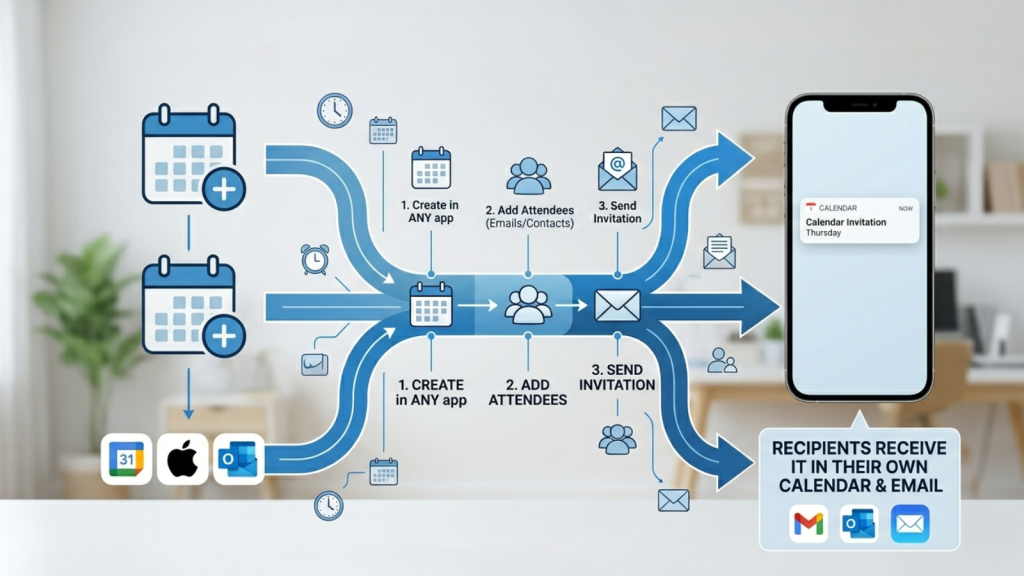
Different platforms offer slightly different workflows. Here’s how they work:
Google Calendar
Simple and widely used. You create an event, add guests, and send invites instantly.
Outlook / Microsoft 365
Best suited for internal teams and corporate environments.
Apple Calendar
If you’re searching for how to send apple calendar invite, the process is similar:create an event, add invitees, and Apple sends the invite via email.
What is an iCal Invite and Why It Matters
An iCal invite is a universal calendar file format (.ics) that allows you to share event details across different platforms like Google Calendar, Outlook, and Apple Calendar. It is usually sent as an email attachment that users need to download and add to their calendar.
Why it matters:
- Works across Google, Outlook, and Apple
- Easy to download and save
- Useful for basic or small-scale event sharing
For modern events like webinars and conferences, this can create gaps in communication and lower attendance. That’s why many teams are moving toward smarter solutions that allow direct calendar integration, tracking, and personalization.
If you want to understand this in more detail, you can read this blog:
Why Let’s Calendar is Better Than Sending ICS or iCal Files for Event Invites
How to Send a Meeting Invite That Gets Accepted
Knowing how to send meeting invite is not enough, you need to make sure people actually accept it.
Here’s what works:
- Keep your title clear (avoid vague names)
- Add a short but clear agenda
- Include a working meeting link
- Avoid sending incomplete invites
Small improvements here can significantly increase acceptance rates.
Can You Send a Calendar Invite via Text?
A common question is how to send a calendar invite via text.
The honest answer: you can’t send a true invite via SMS.
But you can:
- Share event details via text
- Send a calendar link
- Allow users to add the event manually
This is useful for quick communication, but not a replacement for proper invites.
Common Problems with Calendar Invites
As soon as you move beyond small meetings, problems start appearing:
- Sending invites manually takes too much time
- You can’t personalize invites easily
- Tracking responses becomes messy
- Managing large attendee lists is difficult
- Some invites don’t land in inbox
These issues are common for event teams, marketing teams, and webinar organizers.
How Let’s Calendar Solves These Problems
This is where Let’s Calendar becomes useful, not just as a tool, but as a workflow improvement.
Instead of sending invites one by one, you can:
- Send calendar invites to hundreds or thousands of users at once
- Personalize each invite (name, details, context)
- Track who accepted, declined, or ignored
- Manage everything from a single dashboard
The biggest advantage is scale without losing personalization.
For example:
You can send 1,000 invites, but each still feels like a 1:1 communication.
Best Practices for Calendar Invites
If you want better results, follow these:
Keep your invite simple. Don’t overload with information.
Always double-check date, time, and links before sending.
Use clear and meaningful event titles.
Send reminders closer to the event.
Make it easy for users to add events using proper formats.
Conclusion
A calendar invite is more than just a scheduling tool, it’s a key part of how you communicate and manage events.
Understanding the calendar invite meaning, knowing how to send a calendar invite, and applying best practices can significantly improve your event outcomes.
But as your scale grows, manual methods stop working.
That’s where tools like Let’s Calendar help you move from basic scheduling to smart, scalable invite management, without losing control or personalization.
I hope you enjoy reading this blog post. If you want my team to make your calendar sending process simple and automated, click here.

Shubhi is a calendar invitation and event technology specialist at Let's Calendar, helping organizations improve attendance and simplify event scheduling through scalable calendar invitation solutions.
Related Post





Shubhi Patel