- Email: sales@letscalendar.com
- phone: +44 (0) 203 916 5117
24 Apr
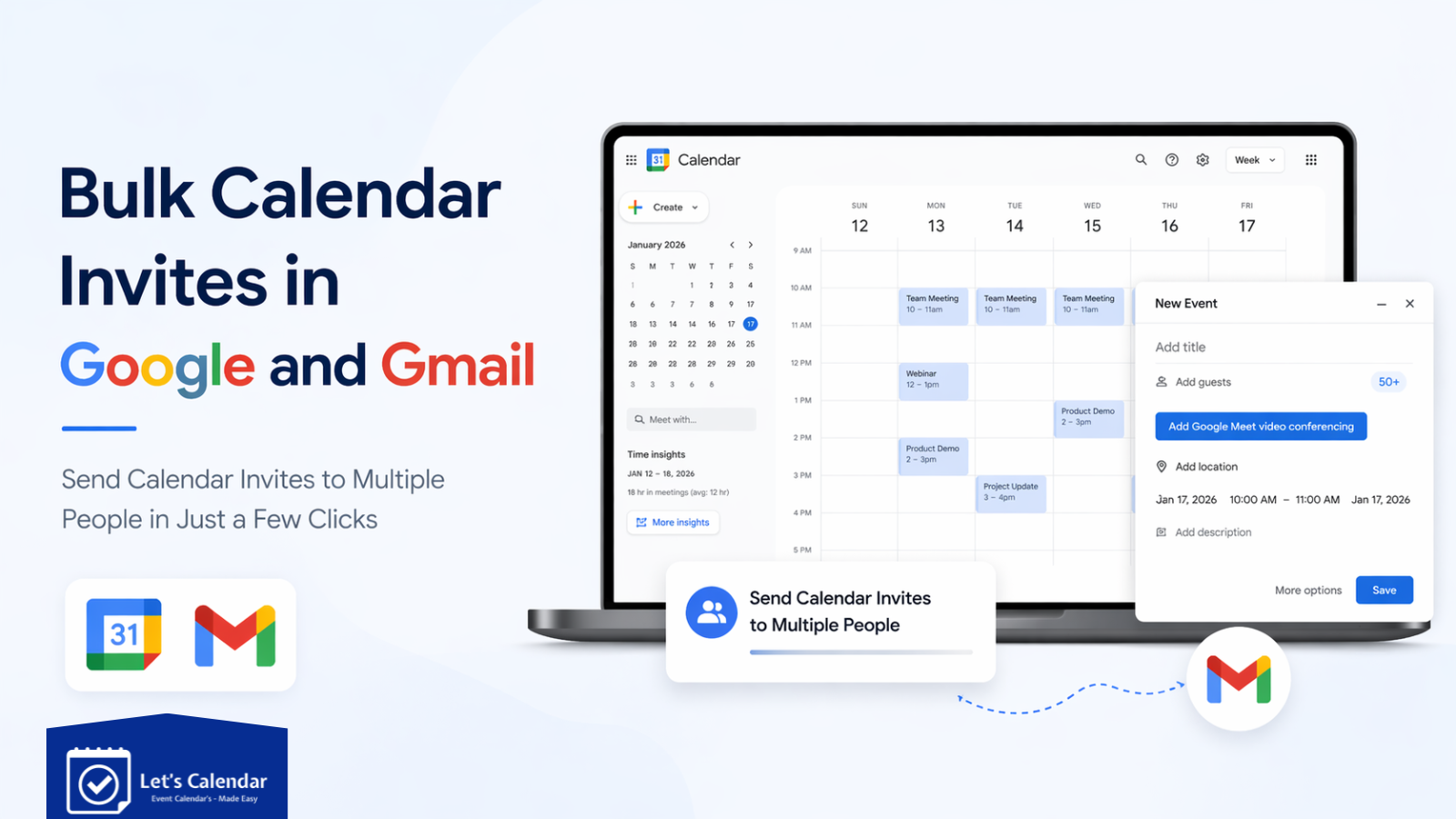
Bulk Calendar Invites in Google and Gmail.
Sending a few calendar invites through Gmail is easy.
But things become much more complicated when businesses need to send Bulk Calendar Invites in Google and Gmail hundreds or thousands of invites for webinars, conferences, client meetings, training sessions, product demos, and virtual events.
This is where many businesses start struggling with calendar invites Gmail workflows.
Marketing teams, webinar organizers, conference planners, sales teams, and audience generation teams often begin with Google Calendar because it feels simple and familiar. But as invite volumes grow, manual processes quickly create problems.
For example, imagine a webinar company hosting a virtual event with 5,000 registrations. Sending invites manually through Gmail can take hours and increase the risk of errors.
This is where platforms like Let’s Calendar help businesses scale invite operations. Instead of manually sending invites through Gmail, teams can automate bulk invites, personalize communication, track responses, and improve attendance.
In this guide, we’ll explain how bulk calendar invites work in Google and Gmail, where these tools become limited, and how businesses can manage high-volume invites more effectively.
What Are Bulk Calendar Invites?
A bulk calendar invite is a way to send the same event invitation to multiple attendees at once instead of manually inviting people one by one.
This is especially useful for businesses that regularly manage large audiences for webinars, conferences, product launches, training sessions, client meetings, and recurring internal events.
For example, if a webinar team has 2,000 registrations, manually adding every attendee to Google Calendar would take hours and increase the chances of errors. With bulk calendar invites, organizers can send one event invitation to all attendees while ensuring everyone receives the correct event details.
A typical invite usually includes important information such as the event title, meeting date, time, timezone, joining link, agenda, and RSVP options. Once recipients receive the invite, they can quickly confirm their attendance and save the event directly to their calendar.
This makes scheduling much easier for both businesses and attendees because people don’t need to manually remember event timings or search through old emails for meeting links.
For growing businesses, bulk calendar invites help streamline communication and improve attendance, especially when managing large-scale events through gmail invites or Google Calendar.
How to Create a Calendar Invite in Gmail
Many users search for how to create a calendar invite in Gmail because they want to quickly schedule meetings using Google tools.
Here’s how the process works:
Step 1: Open Google Calendar
Sign into your Google account and open Google Calendar.
Step 2: Create a new event
Click the “Create” button.
Step 3: Add event details
Add:
- event title
- meeting description
- date
- time
- timezone
Your event title should clearly explain what attendees are joining.
Step 4: Add meeting links
You can include:
- Google Meet
- Zoom
- Microsoft Teams
- webinar registration links
Step 5: Add attendees
Enter email addresses of attendees.
Step 6: Save and send
Click send.
This process works well for small meetings. Many businesses learning how to create calendar invite in Gmail use this method for team calls and internal scheduling.
However, manually repeating this process for hundreds of attendees becomes difficult.
How to Send a Calendar Invite From Gmail
Another common question businesses ask is how to send a calendar invite from Gmail.
Once your event is created, Google sends email notifications to your attendees.
Recipients receive:
- event details
- meeting links
- RSVP options
- event reminders
This allows attendees to quickly respond.
When learning how to send calendar invite from Gmail, many businesses assume Gmail can easily handle bulk campaigns.
But problems begin when you need to send invites to larger audiences.
For example:
A webinar company may need multiple reminder emails.
A conference organizer may need segmented invites.
A client meeting team may need recurring scheduling workflows.
This is where Gmail’s limitations become more visible.
Creating a Google Calendar for a Group
Many teams search for creating a Google calendar for a group when multiple people need access to the same event schedule.
This is commonly used by HR teams managing interviews, marketing teams planning campaigns, or conference teams coordinating internal meetings.
To create one, open Google Calendar, go to “Other calendars,” click the “+” icon, select “Create new calendar,” and share it with your team members.
This works well for internal collaboration, but it doesn’t solve large-scale event invitations. If you need to invite hundreds or thousands of attendees for webinars or conferences, businesses often need a more scalable solution.
Why Manual Gmail Invite Methods Stop Working at Scale
Many businesses start by using Google Calendar and Gmail for bulk invites by adding large guest lists, creating Google Groups, or sharing event links manually.
This may work for smaller meetings, but problems start when invite volumes grow.
Google Workspace accounts typically have sending limits of around 2,000 emails per day, which can slow down large webinar or conference campaigns.
Teams also struggle with limited personalization, no proper response tracking, and manual follow-ups. For example, speakers, sponsors, and attendees may all need different event details, but Gmail sends the same invite to everyone.
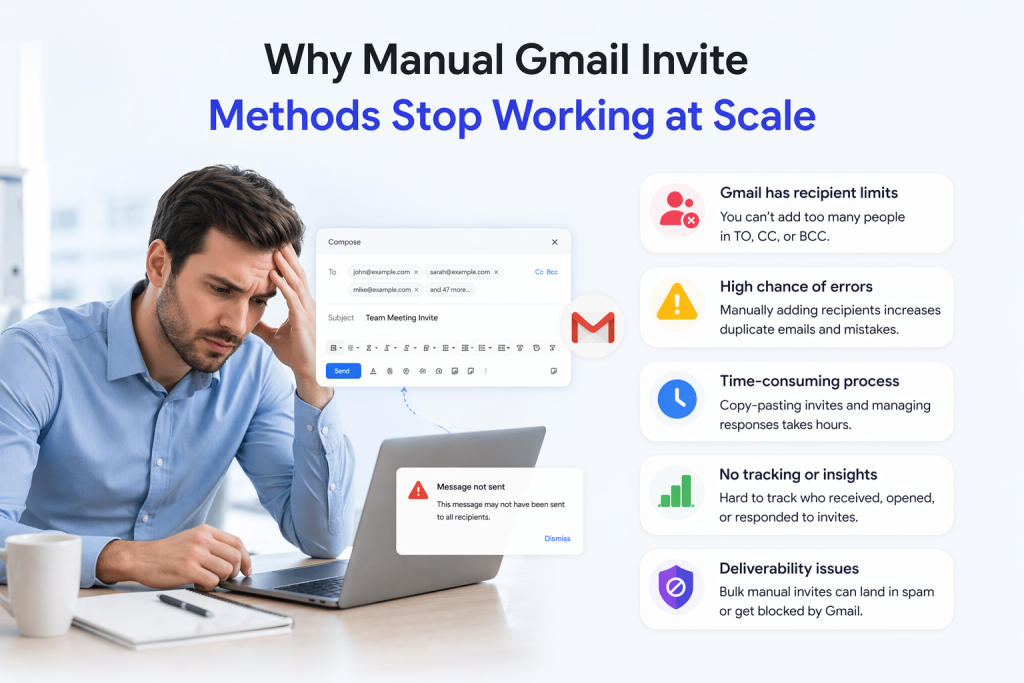
As events scale, these manual methods become time-consuming and difficult to manage.
A Better Way to Manage Bulk Calendar Invites
As invite volumes grow, many businesses move beyond manual Gmail workflows and use platforms like Let’s Calendar to manage bulk invites more efficiently.
Instead of manually sending invites, reminders, and follow-ups, teams can send thousands of calendar invites at once while still personalizing each invite based on the attendee type.
For example, webinar organizers can send invites to thousands of registrants, conference teams can manage separate invites for speakers, sponsors, and attendees, and sales teams can automate recurring client meeting invites.
Let’s Calendar also helps businesses track responses, automate reminders, and send invites discreetly without creating unnecessary manual work.
To improve attendance, businesses should also make sure every invite includes clear event details, accurate meeting links, proper time zones, and relevant information for each attendee group.
When your invite process is simple, personalized, and automated, attendance rates often improve significantly.
Conclusion
Bulk Calendar Invites in Google and Gmail are great for scheduling small meetings and managing basic invites. But when businesses need to send bulk invites for webinars, conferences, client meetings, or large events, manual processes quickly become time-consuming and difficult to scale.
From creating invites manually to managing group calendars and handling Google sending limits, growing teams often need a more efficient solution.
That’s where Let’s Calendar helps, making it easier to send bulk calendar invites, personalize attendee communication, track responses, and manage large-scale events without the manual effort.
Register now to Let’s Calendar and try for free!

Shubhi is a calendar invitation and event technology specialist at Let's Calendar, helping organizations improve attendance and simplify event scheduling through scalable calendar invitation solutions.






Shubhi Patel