- Email: sales@letscalendar.com
- phone: +44 (0) 203 916 5117
07 Aug
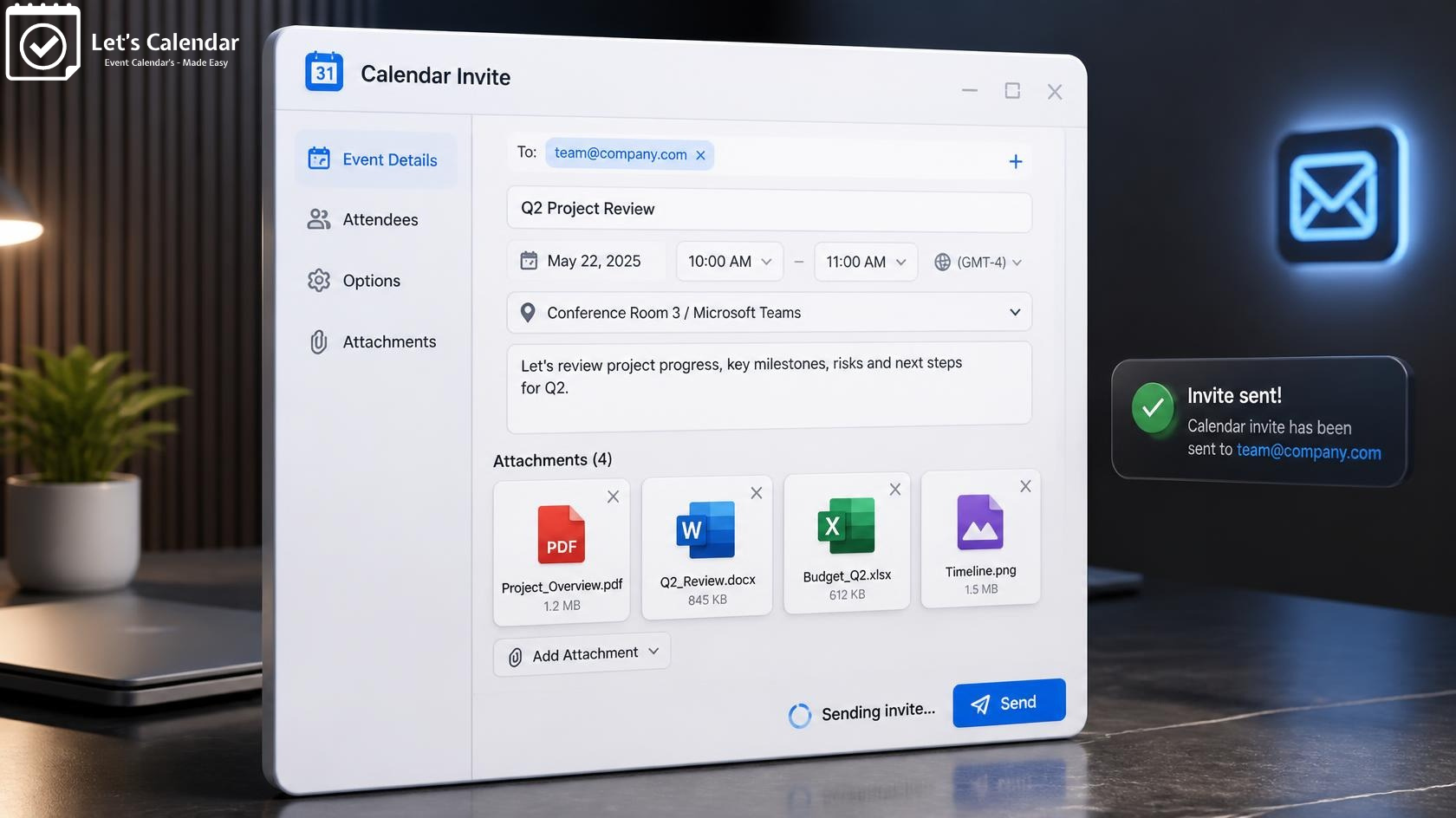
Send Calendar Invites with Attachments
You have created your event and wanted to Send Calendar Invites with Attachments. The date is ready. The time is confirmed. The attendee list is prepared. Your calendar invitation is ready to go. But there is one more thing. You also need to send the event agenda. Or maybe a PDF with speaker information. A meeting document. A presentation. An event guide. Or another important file that attendees need before the event. So what do you do? You send the calendar invitation first and then send another email with the file. For a small meeting, that may not seem like a problem. But when you are organizing a webinar, conference, training session, or business event with hundreds or thousands of attendees, managing separate emails can quickly become inconvenient. The attendee may receive the calendar invitation in one email and the event document in another. They now have to keep track of both. This is where a simple idea can make event communication much easier: send the calendar invitation and the supporting file together. With the new attachment feature from Let’s Calendar, organizers can include a file with the calendar invitation email without changing the normal process of creating and sending a calendar invitation.Why a Calendar Invite Is Sometimes Not Enough
A calendar invitation does an important job. It tells attendees when an event is happening and gives them the information they need to save it to their calendar. But many events require more information. Imagine you are organizing a conference. The calendar invitation tells attendees that the conference starts at 10:00 AM on September 20. That’s useful. But attendees may also need the conference agenda, speaker schedule, venue information, preparation instructions, or other event material. The same situation happens with business meetings. A client meeting may require a proposal. A training session may need a workbook. A webinar may have a speaker guide. A workshop may have preparation material. The calendar invitation tells people when to attend. The attachment can tell them what they need to know before they attend. That is why combining the two can create a much better experience.The Problem with Sending Event Files Separately
The traditional process is simple: create the calendar event, send the invitation, and then create another email with the required document. But every additional step creates another opportunity for something to go wrong. The second email might be sent later. An attendee might overlook it. The file could be buried in a busy inbox. Someone might forward the calendar invitation without forwarding the document. Or an organizer might forget to send the supporting file altogether. For a small internal meeting, these problems may be easy to fix. For a large event, they become much harder. Imagine sending invitations to 2,000 conference attendees. If the agenda is sent separately, the organizer now has to think about two different communications. The attendees also have to keep track of two messages. This is one reason event organizers look for easier ways to Add Attachment to your events and keep important information connected to the invitation.Can You Add an Attachment to a Calendar Event?
Yes, depending on the calendar platform you use. Google Calendar allows organizers to add documents, spreadsheets, meeting notes, and other files to an event. The files can come from Google Drive or be uploaded from a computer. Google also provides sharing options when invited guests do not already have access to a file. Outlook also supports attachments when creating a meeting or event. Microsoft says that when creating a meeting request, organizers can add attachments along with details such as location and recurrence. So, Can you add an attachment to a calendar event? Yes. But the question event organizers often really want to answer is slightly different: How can I make sure the supporting document reaches my attendees together with my invitation, especially when I am sending invitations at scale? That is where the workflow becomes important.How Do I Attach Something to a Calendar Invite?
The answer depends on the platform and the type of attachment you mean. If you are working directly in Outlook, you can create a meeting and add an attachment as part of the meeting request. Microsoft supports attachments in Outlook calendar events. Google Calendar also allows files to be added directly to events. However, depending on the file and the attendees, you may need to manage file-sharing permissions so guests can actually access the document.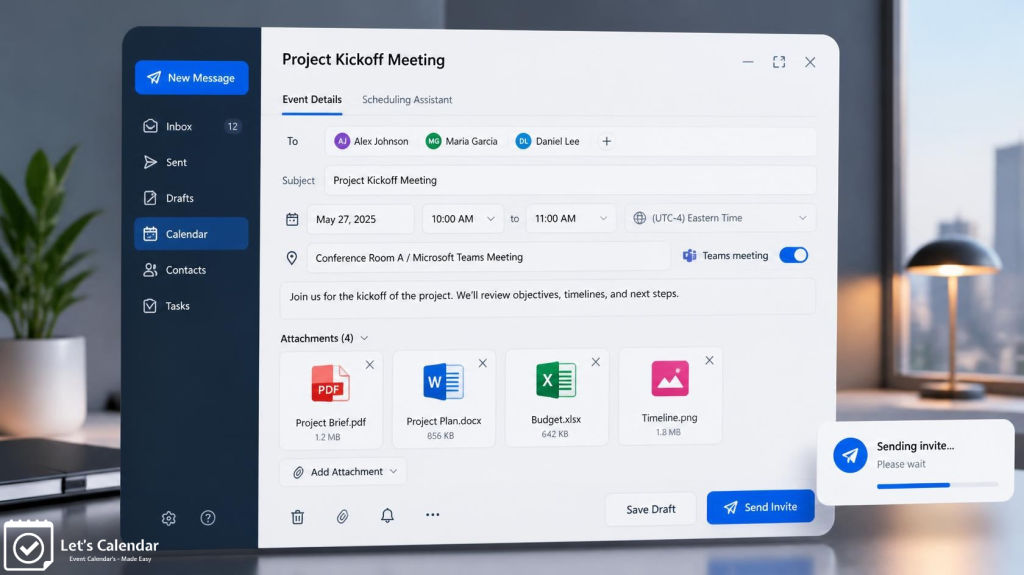 This is an important distinction because “calendar attachment” can mean different things.
Sometimes people mean attaching a normal file such as a PDF or Word document to a calendar event.
Sometimes they mean sending the calendar invitation itself as an attachment.
Those are not exactly the same thing.
This is an important distinction because “calendar attachment” can mean different things.
Sometimes people mean attaching a normal file such as a PDF or Word document to a calendar event.
Sometimes they mean sending the calendar invitation itself as an attachment.
Those are not exactly the same thing.
How Do I Send a Calendar Invite as an Attachment?
If you are asking How do i send a calendar invite as an attachment, you may be referring to an iCalendar file, commonly known as an ICS file. An ICS file contains calendar event information and can be attached to an email or shared as a link. Microsoft documents this as an alternative way to let recipients add an event to their calendar. That is different from attaching a PDF, Word document, spreadsheet, or image to a calendar invitation email. This difference matters when choosing the right solution. If your goal is to give someone the actual calendar event, an ICS files can be useful. If your goal is to send the calendar invitation while also giving attendees an event agenda or other supporting material, you need a workflow that handles both parts together.How Do I Send a Calendar Invite as an Attachment in Outlook?
If you are searching How do i send a calendar invite as an attachment in Outlook, Outlook provides an iCalendar option that allows an event to be shared as an Internet Calendar attachment or link. Microsoft explains that recipients can open the attachment or link and add the event to their calendar. However, this is different from attaching a supporting event document to the invitation. For example, suppose you want to send a conference invitation together with the conference agenda PDF. The calendar invitation and the agenda serve two different purposes. The invitation puts the event on the attendee’s calendar. The PDF gives the attendee additional information. Keeping these two purposes clear helps organizers choose the right approach.How Can I Attach a PDF File to an Outlook Calendar Invite?
A common question is How can I attach a PDF file to an Outlook calendar invite? Outlook supports attachments in calendar events, so you can add files to a meeting request. Microsoft also supports attachments to calendar events in Outlook on the web and Outlook.com. But if you are organizing a large event, you may not want to manually create and manage individual invitations for every attendee. This is where a bulk invitation platform can make the process easier. Instead of thinking only about how to attach one PDF to one meeting, event organizers should think about the complete workflow: Create the event. Prepare the attendee list. Create the invitation. Include the required supporting material. Send the invitation. Make sure attendees receive the information they need. For large events, managing this workflow from one place can save significant time.How Do I Attach a File in Outlook Calendar?
The answer is straightforward for an individual meeting: create or open the calendar event and use the attachment option available in your Outlook version. Microsoft supports adding attachments to meeting requests and calendar events. But individual calendar management and event marketing are two different things. If you have five attendees, manual scheduling may be enough. If you have 500 attendees, the process becomes much more demanding. If you have 5,000 attendees, manually creating and managing individual invitations is no longer an efficient way to work. This is why event organizers need to think beyond the basic “How do I attach a file?” question. The bigger question is: How can I send the same important event information to a large audience without creating unnecessary manual work?What About Teams Calendar Invites?
Another common search is How to add attachment in Teams calendar invite? Microsoft Teams is closely connected with Outlook calendars. When a Teams meeting is scheduled, it can appear in the Outlook calendar, and attendees receive an invitation. Teams also has features for sharing files and meeting notes. Microsoft, for example, supports meeting notes and agendas that can be attached to meeting invitations. But again, the important thing for an event organizer is not simply whether a platform technically supports files. It is how easily the entire invitation process can be managed when you have a large audience. If your event requires a PDF agenda, presentation, document, or other supporting material, you want your attendees to receive the information clearly and without unnecessary extra communication.Attaching and Sharing a File in a Google Calendar Event
Google Calendar provides a direct way of Attaching and Sharing a File in a Google Calendar Event. You can create an event, choose the attachment option, and upload a file or select one from Google Drive. Google also explains that when guests do not have access to the file, you may need to choose how the file should be shared. This works well when you are managing an individual event. But large events can introduce another challenge. You may have hundreds or thousands of people attending from different organizations. They may not all have the same Google account or access permissions. For organizers, reducing these extra steps can make event communication much easier.A Simpler Way: Calendar Invites with Attachments from Let’s Calendar
This is where Let’s Calendar’s new feature fits into the picture. Let’s Calendar already helps businesses send calendar invitations to attendees at scale. Now, organizers can also include a supporting file in the invitation email. The important part is that the existing calendar invitation process remains the same. You create your campaign and enter the event details as you normally would. You add the event title, sender information, event type, time zone, event date and time, calendar invitation description, and email body. After the email body, you will see the new Enable Attachment option. Turn it on, add your required file, and continue with the campaign. After submitting the campaign, upload your attendee data and send the invitation. That’s it. The attendee receives the calendar invitation email with the supporting attachment. The calendar invitation itself continues to work normally. The attachment does not change how the event blocks time on the attendee’s calendar. This is the key difference to communicate: Let’s Calendar is not replacing the calendar invitation. It is making the invitation email more useful by allowing organizers to include the supporting material their attendees need.What Can Event Organizers Use the Attachment Feature For?
The possibilities depend on the type of event you are organizing. A conference organizer may want to send the event agenda along with the invitation. A webinar organizer may want to provide a speaker document or preparation material. A company running employee training may want to send a training guide. A business arranging an important client meeting may want attendees to receive a presentation or meeting document before the call. A workshop organizer may want participants to receive preparation instructions. In each case, the calendar invitation remains the central event reminder, while the attachment provides additional context. The goal is simple: give attendees the information they need without forcing them to search through separate emails.Why Attachments Matter for Large Events
The value becomes even clearer when you move from individual meetings to large events. A Bulk calendar invite is useful when an organizer needs to send one event invitation to a large attendee list. With Bulk calendar invites, organizers can avoid creating the same invitation manually over and over again. When the event also has important supporting material, being able to include that material with the invitation can make the communication more complete. For example, an event organizer preparing a conference might need to send one invitation to hundreds of people along with the conference agenda. Instead of creating a calendar invitations and then organizing another communication for the agenda, the attachment can be included as part of the Let’s Calendar campaign. This is particularly useful when organizers Send Bulk calendar invite campaigns for webinars, conferences, meetings, training sessions, or other events. The same idea applies when businesses need to Send Bulk calendar invites to customers, employees, partners, or registered attendees.What About Mass Calendar Invitations?
Large organizations often use the terms bulk and mass interchangeably. A Mass calendar invite is essentially about sending the same event invitation to a large number of attendees. With Mass calendar invites, the challenge is not creating the event itself. The challenge is communicating the event information consistently to everyone. That is why combining the calendar invitation with supporting event material can be valuable. Instead of thinking only about the calendar entry, organizers can think about the complete attendee experience. The attendee receives the invitation. They see the event details. They can save the event to their calendar. They also receive the supporting material they need to prepare. For organizers who need to Send Mass calendar invite campaigns, this can make the process much cleaner. And when an organization needs to Send Mass calendar invites for a large conference, webinar, or business event, reducing unnecessary communication steps can save time for the organizing team.Why Let’s Calendar Is Useful for Event Organizers
The purpose of the new feature is not to make calendar invitations complicated. It is the opposite. The goal is to make an existing workflow more useful. You already create a campaign. You already enter the event information. You already wrote the invitation email. You already upload your attendee data. Now there is simply another option available when you need to include supporting material. This makes Let’s Calendar useful for organizers who want to manage invitations and event communication from one workflow. The feature is especially useful when the attachment is an important part of preparing attendees for the event. Instead of asking: “Did everyone receive the agenda?” You can make the agenda part of the invitation communication itself. Instead of wondering whether attendees saw the preparation document in a separate email, you can include it with the calendar invitation email. That small change can make the entire process feel more organized.How to Send a Calendar Invite with an Attachment Using Let’s Calendar
If you already know how to use Let’s Calendar, there is very little new to learn.- Start by creating a campaign in Let’s Calendar.
- Enter the normal campaign information, including your event details, sender information, event date and time, calendar invitation description, and email content.
- When you reach the email body section, look for Enable Attachment.
- Turn the option on and add the file you want attendees to receive with the invitation email.
- Continue with the campaign setup and submit it.
- Next, upload your attendee data and send the invitation.
- Your attendees will receive the calendar invitation email along with the supporting file.
Send Calendar Invites with Attachments
Don’t let attendees miss your event!
Do You Really Need Calendar Invite Attachments?
Not every event needs an attachment. If you are sending a simple internal meeting invitation, the calendar details may be enough. But if your event has information that attendees should read, review, download, or prepare before attending, an attachment can be useful. Think about your attendee’s experience. Would they benefit from receiving the agenda when they receive the invitation? Would they need a presentation before a client meeting? Would a training document help them prepare? Would conference attendees find a schedule useful? If the answer is yes, including the supporting material with the invitation can make your communication more complete.The Simple Idea Behind the New Feature
A calendar invitation has one main job: help people remember and attend an event. Supporting documents have another job: help people understand and prepare for that event. When both are delivered together, attendees have the information they need in one place. That’s the idea behind Let’s Calendar’s new attachment feature. It is not about changing the way calendar invitations work. It is about making the invitation email more useful. For event organizers, that can mean less manual follow-up. For attendees, it can mean less searching through their inbox. And for large events, it can mean a simpler communication process from invitation to attendance.Final Thoughts
Send Calendar Invites with Attachments and sending a calendar invitation is easy when you are organizing a small meeting. The challenge starts when your event becomes larger and attendees need more information than just a date and time. You may need to send an agenda, presentation, event guide, preparation document, or other supporting material. Sending those files separately can create another communication step for both the organizer and the attendee. Google Calendar and Outlook already provide ways to add files to calendar events, while Outlook also supports sharing calendar events through iCalendar attachments. But Let’s Calendar takes a different approach for organizers who need to send invitations at scale. With its new attachment feature, you can continue creating your calendar invitation campaign as usual and now include supporting material in the invitation email. So if you have been asking How do i send a calendar invite as an attachment, How do i attach something to a calendar invite, How can I attach a PDF file to an Outlook calendar invite, or How do I attach a file in Outlook calendar, the right solution depends on what you actually want to accomplish. If your goal is simply to manage an individual calendar event, your existing calendar platform may already provide the tools you need. But if your goal is to send professional calendar invitations to a large audience while also giving attendees the important material they need, Let’s Calendar can simplify the process. Whether you need a Bulk calendar invite, Bulk calendar invites, a Mass calendar invite, or Mass calendar invites, the new attachment feature gives you one more way to create a better attendee experience.Create your next campaign with Let’s Calendar and give your attendees the event invitation and the information they need in the same communication.
Visit Let’s Calendar and start sending calendar invites
Shubhi is a calendar invitation and event technology specialist at Let's Calendar, helping organizations improve attendance and simplify event scheduling through scalable calendar invitation solutions.





Shubhi Patel