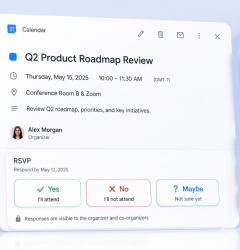
RSVP to calendar invitation workflow showing event registration, calendar blocking, and RSVP tracking

RSVP to Calendar

Getting people to register for an event is only the beginning. The next challenge is making sure they remember the event, respond to the invitation, and actually show up. This is where an RSVP and a calendar invitation work together. An RSVP tells you whether someone plans to attend. A calendar invitation puts the event directly on the attendee’s calendar, making the event easier to remember and manage. For webinars, conferences, meetings, training sessions, and other events, this simple process can make event management much easier. In this guide, we’ll explain how RSVP and calendar invitations work together, how to track responses, and how Let’s Calendar can help you send calendar invitations at scale.

What Is an RSVP?

RSVP means “please respond.” In simple terms, an RSVP asks an invited person to tell the organizer whether they plan to attend an event. Depending on the calendar platform, an attendee may be able to select:
  • Yes / Accept – They plan to attend.
  • No / Decline – They do not plan to attend.
  • Maybe / Tentative – They are not sure yet.
  • No response – They have not responded to the invitation.
So, if you are asking what does it mean RSVP, what is an RSVP, or what is RSVP, the answer is simple: it is a response to an invitation that tells the organizer whether an attendee plans to attend. For a complete explanation of RSVP, its meaning, and how it works with different calendar platforms, read our full guide: RSVP Meaning in Calendar Invites.

Why Put an RSVP Event on a Calendar?

An RSVP tells you what an attendee plans to do. A calendar invitation helps put that event into their schedule. When a calendar invite is sent through Let’s Calendar, the invitation is delivered to the recipient and the event automatically blocks their calendar. The recipient can then respond to the invitation from their supported calendar system. This creates a simple workflow: Send invitation → Calendar is blocked → Attendee responds → RSVP is tracked → Organizer knows who is attending This is particularly useful when you are managing a large number of attendees. For example, imagine you are organizing a webinar for 500 people. You may want to know:
  • Who accepted?
  • Who declined?
  • Who selected Maybe or Tentative?
  • Who has not responded?
  • Who may need the invitation again?
Instead of checking every response manually, an RSVP tracking system gives you a clearer view of your calendar events and expected attendance.

RSVP and Calendar Invitations: How They Work Together

RSVP and a calendar invitation are not separate event processes. They are two parts of the same workflow. First, the organizer sends a calendar invitation. The invitation contains important event information, such as the event title, date, time, location, meeting link, and events description. The invitation reaches the attendee’s calendar. The calendar event is automatically blocked, so the attendee can see the event in their schedule. The attendee can then respond with Yes, No, or Maybe/Tentative. The organizer can use these responses to understand expected attendance. For example: Event invitation → Calendar event → RSVP response → Attendance planning This is especially useful for business meetings, webinars, conferences, workshops, and other web events.

How Let’s Calendar Handles RSVP Responses

One important thing to understand is that RSVP response tracking depends on the calendar platform.

Google Calendar and Outlook

Let’s Calendar can directly fetch RSVP response data from Google Calendar and Outlook because these platforms share the response data with third-party service providers. This means organizers can see the responses collected after sending their calendar invitations. Depending on the response, you can identify attendees who:
  • Accepted the invitation
  • Declined the invitation
  • Selected Maybe/Tentative
  • Have not responded yet
You can also download the response data and use it to manage your attendee list.

Other Calendar or Email Providers

For other third-party service providers, the RSVP response may not be directly available to Let’s Calendar in the same way. In these cases, responses can be received through the Reply All email response mechanism. This distinction is important because not every calendar provider gives third-party services direct access to RSVP response data.

How to Send RSVP Calendar Invitations With Let’s Calendar

If you need to send invitations to a large attendee list, doing everything manually can take a lot of time. Let’s Calendar simplifies the process.

Step 1: Configure Your Sender Email

First, configure the email account you want to use to send your calendar invitations. You can connect a supported email service and use your own sender email for your event invitations.

Step 2: Create Your Campaign

Create a campaign for your meeting, webinar, conference, training session, or other event. Add the important event information, including:
  • Event title
  • Date and time
  • Time zone
  • Location
  • Meeting or webinar link
  • Event description
  • Add attachment (optional)  
  • Other important instructions
A clear description of event helps attendees understand what the event is about and what they need to know before joining.

Step 3: Upload, Add, or Import Your Attendees

Add your attendee list to the campaign. For larger events, you can import attendee information rather than entering every contact manually. This is useful when you need to Send Bulk calendar invite messages to hundreds or thousands of people.

Step 4: Send the Invitation

Once your campaign and attendee list are ready, send the calendar invitations. Let’s Calendar handle the invitation process for you. The invitation is delivered to the attendee, and the event automatically blocks their calendar. This makes it much easier to Send Bulk calendar invites without manually creating individual calendar events. It also works well when you need to send a Mass calendar invite or Send Mass calendar invite messages to a large audience.

Step 5: Track the RSVP Responses

After the invitations are sent, you can track the responses. You can see who has accepted, declined, or not responded, depending on the response data available from the recipient’s calendar provider. This gives the organizer a clearer picture of expected attendance without having to check every response manually.
RSVP to Calendar: Get More People to Show Up
Don’t let attendees miss your event!
Click Here
 

What Should You Include in a Calendar Invitation?

A useful calendar invitation should give attendees everything they need in one place. At a minimum, include:
  • Event name
  • Date and time
  • Time zone
  • Location or online meeting link
  • Event description
  • Organizer information
  • Joining instructions
  • Any important event information
A good events description should be short but useful. Explain what the event is, why the attendee is invited, and what they need to do. For example: Product Webinar: New Features for 2026 Join our product team for a live session covering our latest features, product updates, and practical examples. Date: September 20, 2026 Time: 3:00 PM IST Location: Online Join: [Webinar link] This information can be included directly in the calendar event so attendees can find it when they check their schedule.

How to Add an Event to a Calendar

If you are wondering how to add event to calendar, there are several ways to do it. For a small personal event, you can open Google Calendar, Outlook, Apple Calendar, or another calendar application and create the event manually. For an event with many attendees, however, manually adding every person is not practical. A calendar invitation allows the organizer to send the event information to attendees so the event can be added to their calendar through the invitation process. With Let’s Calendar, the organizer can manage this process from a campaign instead of creating hundreds of individual calendar events. This is especially useful for calendar add event workflows where the same event needs to reach a large number of people.

What Is an ICS Calendar?

You may also come across the terms ICS, iCalendar, or calendar file when researching calendar invitations. An ICS file is a standard calendar file used to exchange event information between calendar applications. It can contain information such as:
  • Event title
  • Date and time
  • Location
  • Organizer
  • Attendee
  • Event description
  • Recurring event information
Let’s Calendar automatically handles the calendar invitation data, so organizers do not need to create or edit .ics files manually. If you want to learn more about the technical side of ICS and iCalendar, you can explore our detailed guide on the ICS file and iCal format.

What Is a Widget in Event Management?

A widget is a small website component that allows users to perform a specific action or interact with information without leaving the page. For example, an event website might use a calendar widget to let visitors add an event to their calendar. A calendar widget can be useful when you want visitors to register for an event and then easily save the event to their calendar. However, a widget is only one part of the event process. For organizers managing large attendee lists, sending personalized calendar invitations and tracking RSVP responses can provide a more complete workflow.

What Is an Event Website?

An event website is a website or dedicated page created to provide information about an event. It may include:
  • Event details
  • Date and time
  • Speakers
  • Agenda
  • Registration form
  • Location
  • Meeting information
  • RSVP or registration options
For larger events, the event website and calendar invitation can work together. The website provides the information needed to register, while the calendar invitation helps put the event directly into the attendee’s schedule.

What to Do With People Who Haven’t Responded

Not every attendee will respond to a calendar invitation immediately. Once you check your RSVP responses, you may find some people who have not responded yet. If you want to follow up with them, you can send the invitation again. You do not need to create a completely new event just because someone has not responded. You can resend the invitation to the people who still have not responded. This gives organizers a simple way to follow up without manually contacting every attendee. Keep in mind that this is an optional follow-up. Let’s Calendar does not send automatic event reminders.

Bulk and Mass Calendar Invites for Large Events

The larger the event, the harder it becomes to manage invitations manually. Sending one invitation at a time can lead to:
  • More manual work
  • Missed attendees
  • Inconsistent event information
  • Difficulty tracking responses
  • More time spent managing spreadsheets and emails
This is where Bulk Calendar Invite tools can help. With Let’s Calendar, organizers can create a campaign, import their attendee list, personalize the invitation, and send calendar invitations to a large number of recipients. You can use it to: The process is particularly useful for webinars, conferences, training sessions, business meetings, and other large events.

How to Get More People to Show Up

Getting someone to RSVP does not guarantee that they will attend. People get busy. Their schedules change. They may register for an event several days or weeks before it happens. This is why putting the event on their calendar is useful. A calendar invitation gives the attendee a visible place to find:
  • The event date
  • The event time
  • The location
  • The meeting link
  • The event description
  • The organizer information
It also gives them a simple way to respond. For event organizers, the combination of calendar invitations and RSVP tracking provides a clearer picture of expected attendance. For example: Register → Receive calendar invitation → Calendar blocked → Respond → Organizer tracks response This simple process can make event management easier and help keep the event visible in the attendee’s schedule.

Best Practices for RSVP Calendar Invitations

Here are a few simple practices that can improve your event invitation process.

1. Send the invitation as soon as possible

Give attendees enough time to see the event and respond.

2. Include complete event information

Make sure the calendar event includes the date, time, time zone, location, joining link, and a useful description.

3. Personalize the invitation

Using the attendee’s name and relevant information can make the invitation feel more personal.

4. Make the event easy to find

A clear event title and description make it easier for attendees to understand what the invitation is about.

5. Track responses

Knowing who accepted, declined, or has not responded helps you plan your event more effectively.

6. Follow up with non-responders when necessary

If someone has not responded, you can send the invitation again rather than leaving their status unresolved.

Final Thoughts

An RSVP tells you what an attendee plans to do. A calendar invitation helps put the event into their schedule. When these two steps work together, organizers get a simple way to send event information, block attendees’ calendars, collect responses, and understand expected attendance. For a small meeting, you can manage this manually. But when you need to send invitations to hundreds or thousands of people, a Bulk Calendar Invite or Mass Calendar Invite solution can save significant time. Let’s Calendar helps organizers create campaigns, add attendees, send personalized calendar invitations at scale, automatically block recipients’ calendars, and track available RSVP responses. Whether you are organizing a webinar, conference, training session, business meeting, or other event, the goal is simple:
Send the invitation. Get the event onto the calendar. Track the response. Make it easier for people to show up.
If you need to Send Bulk Calendar Invites or Send Mass Calendar Invites without managing every invitation manually, Let’s Calendar can help simplify the process.

Frequently Asked Questions

1. What is RSVP?

RSVP means asking an invited person to respond to an event invitation. The response usually indicates whether they will attend, decline, or are undecided.

2. What does RSVP mean?

It means “please respond.” In event management, RSVP tells the organizer whether an invited person plans to attend.

3. What is the RSVP?

The RSVP is the attendee’s response to an invitation, such as Accept, Decline, or Maybe/Tentative.

4. How do I add an event to my calendar?

For a personal event, you can create the event directly in Google Calendar, Outlook, Apple Calendar, or another calendar application. For events with many attendees, the organizer can send calendar invitations so attendees can receive the event directly through their calendar system.

5. What is an ICS calendar?

An ICS calendar file is a standard file format used to exchange calendar event information between different calendar applications. It can contain details such as the event title, date, time, location, organizer, and attendees.

6. What is a widget?

A widget is a small website component that lets users perform an action or interact with information. A calendar widget, for example, can allow website visitors to add an event to their calendar.

7. What is an event website?

An event website is a dedicated website or page that provides information about an event and may include registration, RSVP, speaker, agenda, location, and other event details.

8. Can Let’s Calendar track RSVP responses?

Yes. Let’s Calendar can directly fetch RSVP response data from Google Calendar and Outlook because these platforms share response data with third-party service providers. Organizers can view and download the available responses.

For other third-party service providers, responses can be received through the Reply All email mechanism.

9. Does Let’s Calendar send event reminders?

No. Let’s Calendar does not send automatic event reminders. If an organizer wants to follow up with attendees who have not responded, they can send the invitation again to those recipients.

10. What is AddEvent?

AddEvent is another calendar and event-related service that provides tools for adding events to calendars and managing event-related functionality. If you are researching AddEvent login or comparing calendar tools, make sure you compare the features that matter to your specific event workflow, such as bulk invitations and RSVP tracking.

Related Post

Copyright © 2026. All Rights Reserved.

Designed with    by
Manomay Informatics

About Us

Follow Us