- Email: sales@letscalendar.com
- phone: +44 (0) 203 916 5117
16 Oct
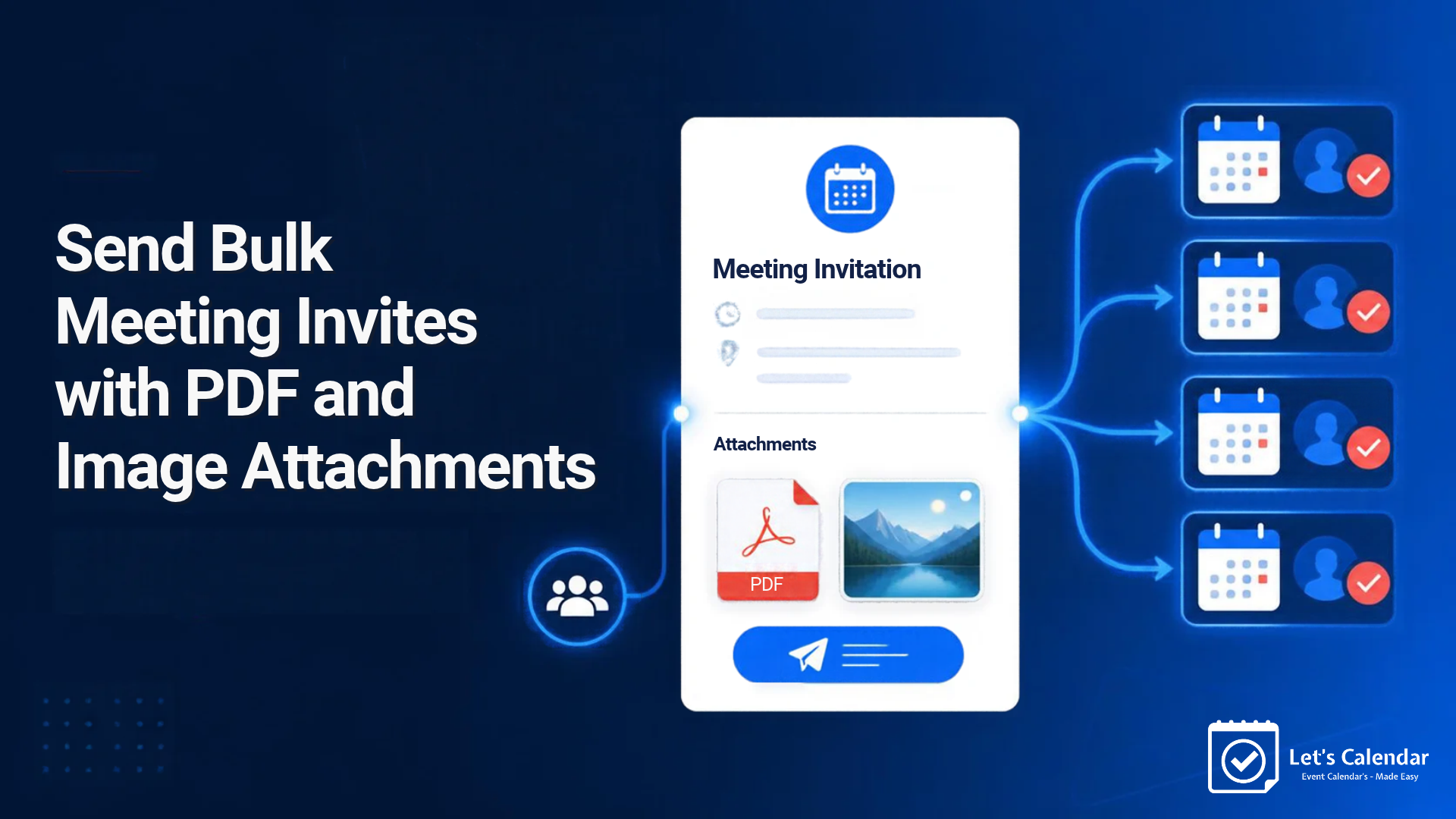
Send Bulk Meeting Invites with PDF and Image Attachments
When you organize a meeting, webinar, conference, or training session, sending the calendar invitation is only one part of the process. Attendees may also need an agenda, calendar invite with attachment, a presentation, a PDF guide, or an image with important event information.
Sending these files in separate emails can make communication harder to manage, especially when you have hundreds or thousands of attendees.
With Let’s Calendar, you can send bulk calendar invitations and include supporting attachments in the invitation email. This helps you share event details and important files together, without creating a separate email for every attendee.
In this guide, we’ll explain how to send bulk meeting invites or how to add a calendar invite with PDF and image attachments, when this feature is useful, and how it compares with adding attachments to individual calendar invitations in Outlook.
Why Send Bulk Calendar Invites with Attachments?
A calendar invitation tells attendees when an event will take place. However, some events require additional information to help people prepare.
For example, a conference attendee may need the event agenda, while someone attending a business meeting may need a proposal or presentation. Sending these documents separately adds another step for both the organizer and the attendee calendar invite for meeting.
When you send bulk calendar invites with attachments, you can include the supporting file in the invitation email itself.
Here are a few benefits:
- Keep event information together: Attendees receive the invitation and its supporting document in the same email.
- Reduce separate emails: You may not need to send another email just to share the event agenda or preparation material.
- Make event preparation easier: Attendees can refer to the information provided with their invitation.
- Simplify large-scale communication: You can manage invitations for a large attendee list through one campaign instead of preparing individual emails manually.
Whether you are arranging a client meeting or a large conference, including relevant files can make your calendar invitation more useful.
What Files Can You Include in a Calendar Invite?
The files you include depend on what your attendees need before the event. PDF, add attachment to calendar invite outlook documents and supported image files can be useful for sharing information that people should review before attending.
Here are some examples.
PDF documents
- Conference agendas and event schedules
- Meeting proposals and reference documents
- Training materials and workshop instructions
- Event guides and speaker information
Image attachments
- Event-related images and visual information
- Reference diagrams and illustrations
- Other relevant images that help attendees prepare
For example, if you are organizing a webinar, you could include a PDF with speaker details or preparation instructions. For a conference, you could share the agenda so attendees know what to expect.
Choose files that are relevant to the event and useful to your audience. Before sending mass calendar invites, check that you have selected the correct attachment.
How to Send Bulk Meeting Invites with PDF and Image Attachments
Let’s Calendar makes it possible to include an attachment in your calendar invitation or Send Mass calendar invite campaign. You can continue using the regular campaign workflow and enable the attachment option when preparing your invitation email.
Follow these steps to get started.
Step 1: Create a Calendar Invitation Campaign
Log in to your Let’s Calendar account and create a new campaign.
Enter the required event information, including:
- Event title
- Event date and time
- Time zone
- Sender information
- Calendar invitation description
- Email body
Check the event details before moving to the next step. The information should be clear and accurate so attendees know what they are being invited to.
Step 2: Enable the Attachment Option
While preparing the campaign, go to the email body section and look for the Enable Attachment option.
Turn it on and add the file you want to send with your invitation email.
For example, you might select a PDF containing the meeting agenda or an image with useful event information.
Make sure the selected file is relevant to the event and that you have added the correct document before continuing.
Step 3: Submit the Campaign and Upload Your Attendee List
Once you have completed the campaign setup, submit the campaign.
Next, upload your Bulk calendar invites attendee data using a supported file format, such as an Excel or CSV file. Check that the attendee information is correct before proceeding.
This step is especially important when you are preparing to send mass calendar invitations. A well-organized attendee list helps you manage your campaign more easily.
Step 4: Send Your Bulk Calendar Invitations
After completing the campaign setup and uploading Bulk calendar invite your attendee list, send the invitations through Let’s Calendar.
Your attendees receive the calendar invitation email along with the supporting attachment.
The attachment provides additional event information, while the calendar invitation serves its usual purpose of helping attendees add the event to their calendars. They do not need to manually create the event just because the email contains an attachment.
Before sending invitations to a large audience, consider sending a test invitation to check the email content, event details, and attachment.
Ready to try it? Create a Let’s Calendar campaign and explore the attachment option.
When Should You Use Bulk Calendar Invites with Attachments?
Not every calendar invitations needs an attachment. For a simple internal meeting, the event title, date, time, and description may be enough.
However, how to attach a calendar invite to an email when attendees need additional information, attaching a relevant file can make the invitation more helpful.
Here are some common situations where this feature can be useful.
Conferences and Business Events
Conference organizers often need to share agendas, schedules, speaker information, and event guides.
Instead of sending the invitation to add attachment to outlook calendar invite without sending update and then sending another email with the agenda, organizers can include the supporting document with the invitation email.
Webinars and Online Sessions
Webinar organizers may need to provide preparation instructions, speaker details, or other reference material.
Including a relevant attachment helps attendees find this information when they receive their invitation.
Client and Business Meetings
A business meeting may require a proposal, a presentation, or a reference document.
When inviting multiple clients or business partners to an event, attaching the relevant file can help everyone receive the same information.
Training Sessions and Workshops
Training sessions may require workbooks, instructions, or other preparation material.
Sharing the relevant document with the calendar invitation gives participants a convenient place to find the information they need before the session.
In each case, the aim is the same: Send Bulk calendar invite and useful supporting information together.
Bulk Calendar Invites vs. Adding Attachments Manually in Outlook
If you use Outlook, you may already know how to add an attachment to a calendar invite. Outlook supports attachments for individual meeting requests, making it useful for regular meetings and smaller groups.
However, adding an attachment to one Outlook meeting is different from managing a bulk calendar invitation campaign.
Consider the difference:
- For an individual meeting: You can create a meeting in Outlook and attach the relevant file through the available options.
- For a large attendee list: Preparing and managing invitations individually can become time-consuming.
- For bulk invitations: Let’s Calendar lets you create a campaign, prepare your attendee list, and include a supporting attachment in the invitation email.
The right approach depends on the number of attendees and how you want to manage your invitations.
If you regularly send invitations for webinars, conferences, training sessions, or business events, a bulk calendar invite platform can help you manage the process more efficiently.
How to Add an Attachment to an Outlook Calendar Invite
For an individual meeting, the usual approach is to create or open the calendar event and use the attachment option available in your version of Outlook.
The exact steps can vary depending on the Outlook version and whether you are creating a new meeting or editing an existing one.
If you need to send invitations to a large number of attendees, consider whether managing a campaign would be more practical than creating each invitation individually.
Can You Add an Attachment to an Outlook Calendar Invite Without Sending an Update?
This is a common question when someone needs to change an existing meeting.
The behavior depends on the Outlook version, the type of meeting, and how the change is made. Editing an existing meeting can result in an update being sent to attendees, so do not assume that adding an attachment will happen silently.
If you need to change an existing meeting without notifying attendees, check the options available in your Outlook version before saving the change.
This is different from creating a new Send Bulk calendar invite campaign with an attachment in Let’s Calendar. The attachment feature described in this guide is for including a file with the invitation email, not for silently modifying an existing Outlook meeting.
Best Practices Before Sending Bulk Calendar Invites
A little preparation can help you avoid common mistakes when sending invitations to a large audience.
- Check the event details. Confirm the event title, date, time, and time zone before sending.
- Review the attachment. Make sure the file is correct, relevant, and ready for attendees to use.
- Check your attendee list. Review the email addresses and remove duplicate or incorrect entries where necessary.
- Send a test invitation. Check the invitation email, event details, and attachment before sending to the full list.
- Understand your sending limits. Your sending Mass calendar invite capacity depends on your sender email identity and its applicable limits. Plan your campaign according to the number of invitations you need to send and the time available.
- Allow enough time for delivery. If you are preparing a large campaign, plan your sending schedule in advance instead of waiting until the last minute.
These checks can help you manage your bulk calendar invitations with greater confidence.
Make Your Bulk Calendar Invitations More Useful with Let’s Calendar
Sending calendar invitations or Send Bulk calendar invites to a large audience can become more complicated when attendees also need agendas, presentations, event guides, or other supporting documents.
With Let’s Calendar, you can manage your invitation campaign and include a supporting attachment in the invitation email. This helps you share the event details and relevant files together, without preparing each invitation manually.
Whether you need to send mass calendar invites for a conference, webinar, training session, or business meeting, the attachment feature gives you another way to make your event communication more organized.
Ready to get started? Try Let’s Calendar and create your next calendar invitation campaign.
For more information, read our guide to sending calendar invites with attachments or explore our existing article on calendar invitations with attachments.

Shubhi is a calendar invitation and event technology specialist at Let's Calendar, helping organizations improve attendance and simplify event scheduling through scalable calendar invitation solutions.
Related Post





Shubhi Patel